

The first time I took my phone abroad as an adult, I did what a lot of people do. I assumed texting was “cheap” compared to calls, so I left everything on and enjoyed my trip. When I got home, I had a bill that looked like my phone went backpacking without me. The sneaky part was that it was a mix: a little roaming data from background activity, plus a couple of carrier texts I did not think would count.
The good news: avoiding international SMS roaming charges is mostly about flipping a few settings before you leave, then using Wi-Fi and app-based messaging while you travel. Here is how I keep my family group chats alive without donating extra money to my carrier.
What triggers SMS roaming fees
International charges usually come from one of these situations:
- You are roaming on a foreign cellular network and you send an SMS or MMS.
- You receive SMS while roaming (some carriers charge inbound, some do not, and it can vary by plan and country).
- MMS (picture messages) and many group texts use your carrier’s multimedia system, not an app, which can rack up charges fast.
- Short codes and verification texts (banks, apps, two-factor codes) arrive over SMS and can still be billable if your plan charges inbound roaming texts.
Quick definitions: SMS is plain carrier texting. MMS is carrier picture and video messaging (and often group messaging). iMessage, WhatsApp, Signal, Messenger, Telegram, and many RCS chats are app or data-based, meaning they use Wi-Fi or mobile data instead of the SMS channel.
The goal is simple: prevent your phone from using the carrier SMS and MMS channel while you are outside your home country.
Before you leave: no-surprises setup
1) Turn off data roaming
Data roaming is not the same thing as SMS roaming, but it is still a big source of “surprise” charges. Background app activity can trigger roaming data sessions even when you think you are “not using data.”
- iPhone: Settings > Cellular (or Mobile Service) > Cellular Data Options > Data Roaming: Off
- Android: Settings > Network & internet > SIMs (or Mobile network) > Roaming: Off
If you plan to use an eSIM or local SIM for data, keep roaming off on your home SIM and use the travel SIM for data instead.
2) Disable “Send as SMS” on iPhone
This is one of my favorite quiet money savers. When iMessage cannot reach Apple’s servers (bad Wi-Fi, captive portal, etc.), an iPhone can automatically resend your message as a paid SMS.
- iPhone: Settings > Messages > Send as SMS: Off
With this off, an iMessage that cannot send fails instead of quietly converting to SMS while you are roaming.
3) Lock down MMS and group messaging
MMS is often the most expensive mistake abroad because one photo can trigger a pricey roaming message. If you are trying to avoid carrier messages completely, use app-based photo sharing for the trip.
- iPhone: Settings > Messages > MMS Messaging: Off (optional, but helpful if you want to avoid carrier messaging)
- Android: In Google Messages, open Settings and look for MMS or auto-download controls (names vary by device).
4) Enable Wi-Fi Calling, but verify billing
Wi‑Fi Calling can be a lifesaver for calls and texts when you are on Wi‑Fi. In many cases, texts sent over Wi‑Fi Calling are billed as if you are on your normal domestic plan. But there is no universal rule. Carrier policies vary, plan details matter, and some “international texting” rules may still apply depending on who you text and what your plan includes.
What I do: I enable Wi‑Fi Calling, then I assume nothing until I confirm in my carrier account. If it works the way you want, it can help you receive bank texts without turning roaming on.
- iPhone: Settings > Phone > Wi‑Fi Calling > On
- Android: Settings > Network & internet > Calls & SMS > Wi‑Fi calling (path varies)
5) Add a carrier block if you can
Many carriers let you block international roaming, block international messaging, or set account-level limits. If your carrier offers an “International Roaming Block” or “International Messaging Block,” turning it on before you go is the closest thing to a seatbelt.
If your carrier only offers a paid travel pass, decide before your trip whether you will use it. The expensive scenario is “I think I am not roaming” but your phone roams anyway.
Message abroad without SMS
Use Wi-Fi plus app-based messaging
If your main goal is to avoid SMS charges, the simplest approach is: use Wi‑Fi wherever you can and message through apps. That includes:
- WhatsApp for cross-platform family chats
- Signal if you want strong privacy with a simple interface
- Telegram for large group chats and easy media sharing
- Facebook Messenger if that is what your circle already uses
These use Wi‑Fi (or travel eSIM data) and avoid carrier SMS altogether. If you want more ideas for texting without relying on your carrier, see Send free international texts without carrier fees and the broader Free Texting guide.

Travel eSIMs and local SIMs
A travel eSIM or local SIM can be a great way to get affordable data abroad, which makes app-based messaging easy. But it does not automatically prevent SMS roaming charges on your home number.
Use a travel eSIM without surprise texts
- Keep your home SIM enabled only if you truly need it (for receiving 2FA texts, for example).
- Turn off data roaming on your home SIM and use the travel eSIM for cellular data.
- On iPhone: Settings > Cellular lets you choose which line is “Cellular Data.” Pick the travel eSIM.
- Disable “Send as SMS” so messages do not fall back to your home line.
If you do not need your home number at all while traveling, the cleanest option is often to turn the home SIM off (or remove a physical SIM). That prevents the home line from registering on foreign networks. Just remember the tradeoff: you will not receive SMS sent to that number, and services tied to that number (including iMessage and FaceTime activation on some devices) may eventually stop associating with it until you turn the SIM back on.
Setting combos that work
The zero-risk combo
- Turn Airplane Mode on
- Turn Wi‑Fi on (while staying in Airplane Mode)
- Use app-based messaging (WhatsApp, Signal, iMessage over Wi‑Fi)
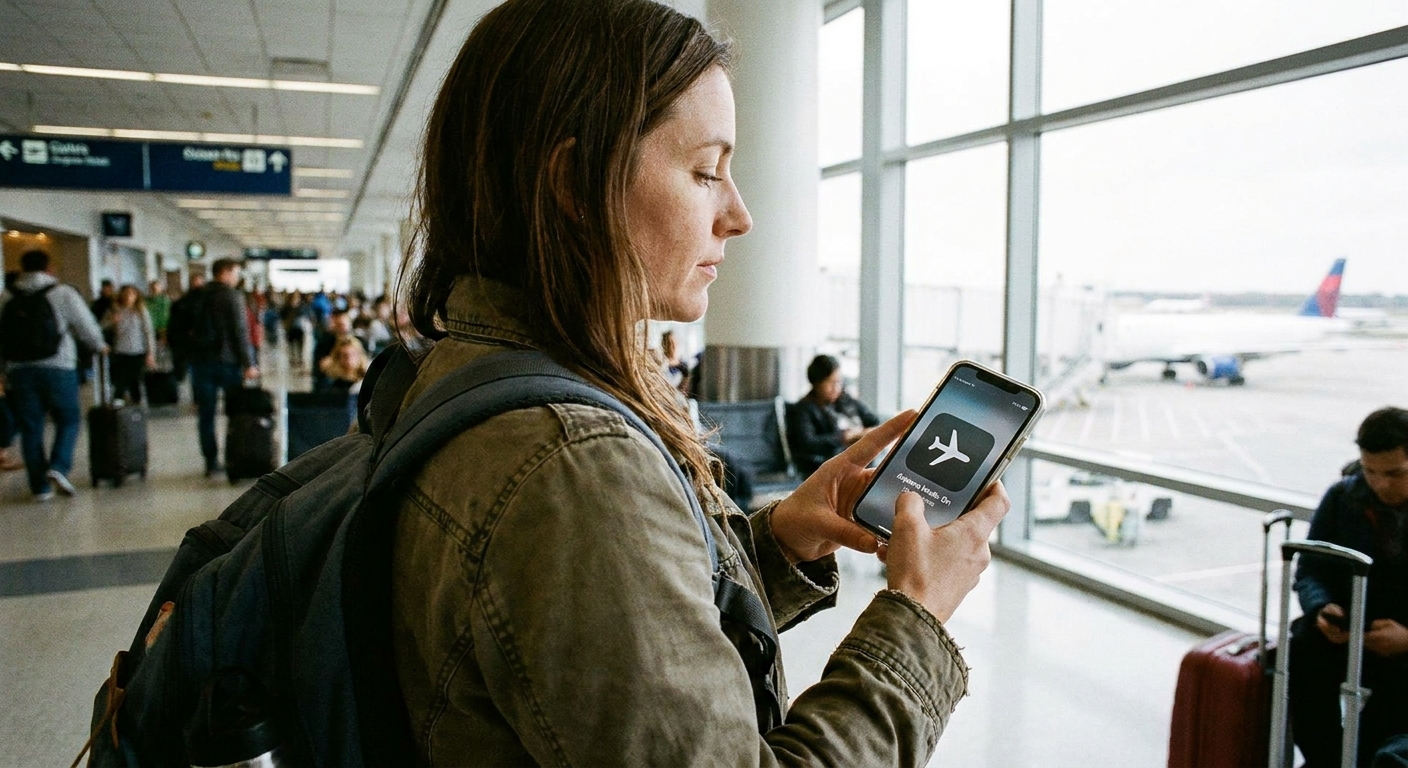
This is the easiest way to guarantee your phone is not registered on a foreign network. You still have Wi‑Fi, Bluetooth, downloaded maps, and all your apps.
The combo that fools people
Data roaming off is good, but it does not necessarily stop your phone from:
- registering on a foreign network for voice and SMS
- receiving SMS short codes
- sending an accidental SMS fallback message
If your carrier charges inbound texts while roaming, you want to be more aggressive. Airplane Mode plus Wi‑Fi is the sure thing.
Extra safety: turn off Cellular Data entirely
If you want a simpler switch than digging through roaming menus, you can also turn off cellular data completely while traveling. This will not stop SMS roaming by itself, but it reduces the odds of any “oops” data usage when you are not on Wi‑Fi.
- iPhone: Settings > Cellular > Cellular Data: Off (or turn it off for your home line in dual SIM)
- Android: Settings > Network & internet > Internet (or SIM) > Mobile data: Off
Android: RCS can fall back to SMS
One Android-specific gotcha: many chats in Google Messages use RCS, which is data-based (more like iMessage). But RCS can fall back to SMS if RCS is unavailable, if the other person does not have RCS, or if something breaks mid-trip.
My habit: before I hit send, I look at the message indicator in the thread. If it says SMS or Text message, I assume it can trigger roaming charges. If it says RCS or Chat message, it is using data. When in doubt, I switch the conversation to an app-based messenger for the duration of the trip.
Two-factor codes without roaming SMS
This is the part that trips up even frugal travelers. Banks and services love SMS codes, and those can arrive at inconvenient times.
Do this before you fly
- Switch to an authenticator app (TOTP) where possible, so codes generate on your phone without SMS.
- Enable backup codes for critical accounts and store them securely.
- Use push-based approvals inside your bank app if available.
If you must receive SMS codes on your home number, test Wi‑Fi Calling at home first and confirm how your carrier bills texts over Wi‑Fi Calling while abroad. If you want a workaround that does not require your main number for every signup, I covered options in Free second phone number for texting and verification.
Quick pre-trip checklist
- Turn Send as SMS off (iPhone)
- Turn Data Roaming off (home SIM)
- Decide: home SIM off or Airplane Mode + Wi‑Fi for the trip
- If you use dual SIM, confirm the default line for calls and messages so you do not accidentally use the home line
- Set up WhatsApp or Signal chats with the people you actually message
- Download offline maps and any tickets you need
- Confirm Wi‑Fi Calling behavior and billing (if you plan to rely on it)
- Switch key accounts from SMS 2FA to app-based 2FA when possible
FAQ
Can I be charged for receiving texts abroad?
Yes, depending on your carrier and plan. Some carriers do not charge for inbound SMS roaming, but others do, and the rules can change by country and plan type. If you want a guaranteed “no,” use Airplane Mode with Wi‑Fi or turn your home SIM off.
Will iMessage keep me safe from SMS charges?
Mostly, but only if you prevent fallback. Turn Send as SMS off, and be careful with poor connectivity. If iMessage cannot send and fallback is enabled, you can accidentally send a paid SMS.
If I buy a travel eSIM, can my home carrier still charge me?
Yes. A travel eSIM mainly gives you data. Your home SIM can still roam for SMS and voice unless you disable it, block roaming, or use Airplane Mode.
What about texting from a laptop to avoid roaming?
If you have Wi‑Fi, using web-based messaging or messaging from a computer can help you avoid touching SMS entirely. For options, see Send free SMS from your computer.
One last tip from my trips
If you are traveling with family members who are not techy, do not try to teach them ten new apps the morning you leave. Pick one app-based messenger everyone can use on Wi‑Fi, test it in your living room, then go. It is the cheapest way I know to keep a scattered family connected without the “welcome home” bill shock.
For more ways to shave down phone costs beyond travel, I keep my broader tactics updated in the Save Money guide and Phone and Bills guide.