
I grew up in a loud, scattered family where someone was always moving, traveling, or switching phone plans. The one constant was the group chat, and the one pain point was the bill. So I got into a habit that still saves me time and money today: doing as much texting as possible from a computer, using Wi-Fi and the tools your phone already has.
This guide covers the safest, most practical ways to send and receive SMS from a PC or Mac for free (meaning no extra app subscription). You will still need a phone number somewhere, but you can avoid paid “web texting” services that feel sketchy and break at the worst time.
First, a quick reality check on “free SMS”
When people say “send free SMS from a computer,” they usually mean one of three things:
- Texting through your own phone number from a computer, using your carrier plan. If your plan includes unlimited texting, this feels free.
- Texting over the internet using iMessage or an app like WhatsApp or Signal. This is usually not SMS, but it is often the easiest way to message across devices without extra fees.
- Texting using a web-based phone number (VoIP). This can be free, but deliverability to banks, short codes, and verification systems is often limited.
Quick vocabulary note: SMS is traditional carrier texting, RCS is a newer “chat style” standard many Android phones use, and iMessage is Apple’s internet-based messaging (Wi-Fi or cellular data) between Apple devices.
If your goal is everyday texting with real reliability, your best bet is using your existing phone number via an official pairing tool (like Google Messages for Web or Apple’s Text Message Forwarding).
Best overall: Use your number with pairing
Android: Google Messages for Web (RCS and SMS)
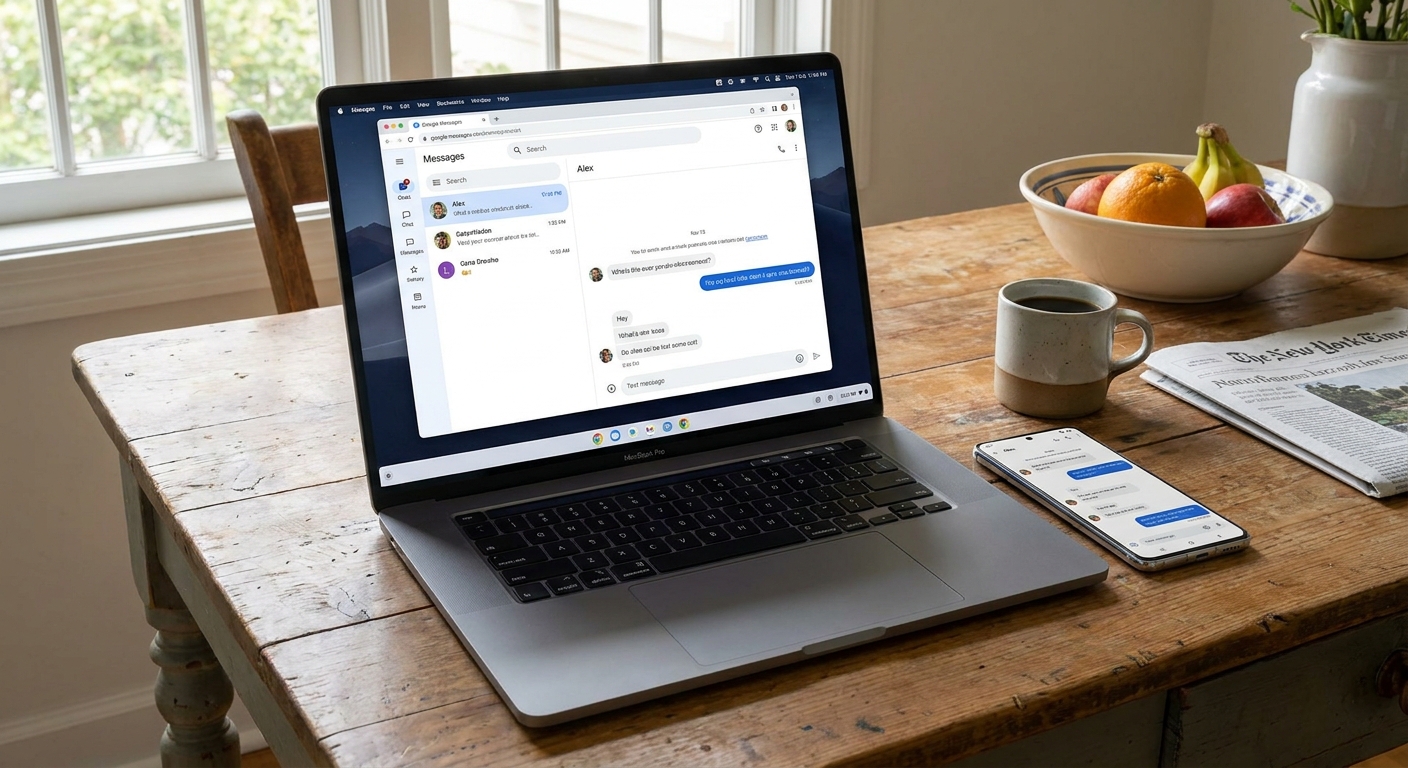
If you have an Android phone and you use Google Messages, this is the cleanest setup I have found. It mirrors your conversations in a browser and lets you send texts from your keyboard.
- What you need: Android phone with Google Messages, any computer with a modern browser (PC, Mac, or Chromebook), Wi-Fi or data on the phone
- Cost: Free
- What you can do: Send and receive SMS and (if available) RCS, see recent or synced message history (depending on your settings), get desktop notifications (optional)
How to set it up:
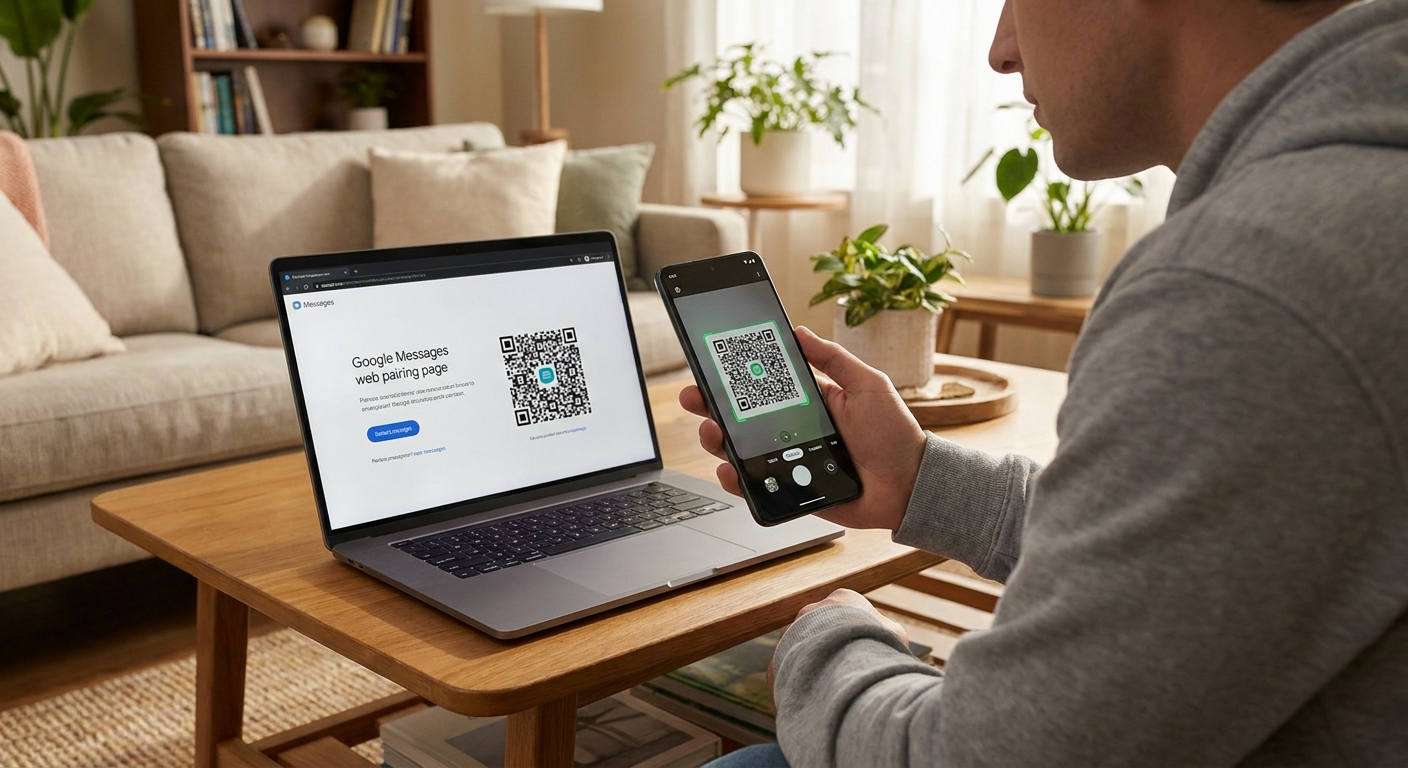
- On your computer, go to https://messages.google.com/web.
- On your phone, open Google Messages.
- Tap the menu and choose Device pairing (wording can vary slightly).
- Scan the QR code on your computer screen.
My reliability tip: If messages fail to send, check battery saver settings on your phone. Aggressive battery optimization can pause the background connection that keeps web syncing smooth.
iPhone + Mac: iMessage and Text Message Forwarding
If you use a Mac and an iPhone, Apple’s built-in setup is excellent. You can send:
- iMessages to other Apple users over the internet (Wi-Fi or cellular data)
- SMS texts to anyone, routed through your iPhone, using Text Message Forwarding
What you need: iPhone, Mac with the Messages app, the same Apple Account signed in on both, and Messages enabled for your Apple Account on both devices
How to turn on SMS forwarding:
- On iPhone, open Settings.
- Go to Messages (on some iOS versions it may appear under an Apps list first), then tap Text Message Forwarding.
- Enable your Mac.
- Confirm any verification code that appears.
Good to know: If your iPhone is off, out of battery, or cannot receive SMS from your carrier, SMS forwarding can stop. iMessage can still work as long as your Mac is online, but green-bubble SMS depends on the iPhone acting as the bridge.
Windows: Microsoft Phone Link (best on Android)
Windows has improved a lot here. Microsoft’s Phone Link can let you view and send messages on a Windows PC, but the experience depends heavily on whether you are using Android or iPhone.
- What you need: Windows 10 or 11, Android phone or iPhone, Bluetooth, and permissions set correctly
- Cost: Free
My practical take: If you are on Android, Phone Link can be genuinely handy and can offer richer syncing depending on your model and settings. On iPhone, it is usually closer to basic send and receive plus notifications through Bluetooth, so expect fewer features and occasional quirks. If you run into missed notifications or partial syncing, re-check permissions and background app settings on your phone.
Free messaging apps on a computer
Sometimes you do not actually need SMS. If the person on the other end is willing to use the same app, you can message for free over Wi-Fi and skip carrier texting entirely.
WhatsApp Web and Desktop
WhatsApp is one of the simplest setups, and it works well internationally. It is not SMS, but for family overseas it can be a big money-saver.
How it works: You sign in by pairing to https://web.whatsapp.com/ (usually by scanning a QR code). Newer multi-device support also means your phone is not always required to stay online for every message.
Heads up: Some workplaces block WhatsApp Web. If you are on a managed network, do not be surprised if it is restricted.
Signal Desktop
If privacy matters, Signal is the one I recommend most often. You install Signal on your computer and link it to your phone. Again, not SMS for most people, but a solid daily messenger.
Tip: Keep your desktop app updated. Messaging apps patch security issues more often than people realize.
Telegram Desktop
Telegram is convenient because it is more cloud-synced than some competitors. That makes multi-device use easy, but it also means you should take account security seriously.
Do this: Turn on two-step verification in Telegram settings and review active sessions periodically.
If you want a broader overview of free texting options, I keep a running guide here: /guide-free-texting/.
“Free SMS sites”: what to use, what to skip
You will find a lot of sites that promise “send a free text online” without signing up. In my experience, these fall into two buckets:
- Temporary public inbox sites meant for receiving texts. These are not private. Avoid using them for anything sensitive.
- Ad-heavy send-a-text forms that fail often, get rate-limited, or quietly stop working.
I do not rely on those for real communication. If you want a free number that can send and receive from a computer, you are usually better off using a reputable VoIP service.
Google Voice (primarily US)
Google Voice gives you a free number (primarily US) and lets you text from a browser. For many people, it is the closest thing to “free SMS from a computer” that still feels legitimate.
- Cost: Free for personal use in the US
- Works from: Web and mobile app
- Limitations: Some banks and short codes do not like VoIP numbers
You can learn more here: https://voice.google.com/.
Important warning: Do not use any “free texting website” for two-factor codes or password resets. If you do not control the number long-term, you can lose access to accounts.
Simple tools that help
Browser notifications
If you use Google Messages for Web or WhatsApp Web, enable notifications only on your personal laptop, not a shared computer. It is convenient, but it also means message previews can pop up.
Use separate browser profiles
This is one of my favorite low-effort safety tricks. Create a separate Chrome or Edge profile just for messaging. That keeps your text sessions away from work logins, random extensions, and shared autofill.
Avoid random “SMS extensions”
Browser extensions that promise to send SMS are often just wrappers around third-party services. Best case, they stop working. Worst case, they collect metadata or inject ads. If an extension is not from a company you already trust, I skip it.
How to keep it private
- Lock your computer. If you text from a browser tab, anyone walking by can read your messages.
- Log out on shared devices. Especially with web sessions that stay signed in.
- Assume work devices are monitored. If your computer is employer-managed, your browser activity and notifications may be logged or visible to IT. Keep personal texting on personal devices when you can.
- Watch for phishing texts. Desktop makes it easier to click a bad link fast. Slow down with anything that feels urgent.
- Use two-factor authentication where possible. Especially for VoIP-based services like Google Voice.
For more general cost and bill sanity checks (the boring stuff that saves real money), see: /audit-your-phone-bill-before-switching/.
Troubleshooting
Messages are not syncing
- Restart your phone first. It fixes more pairing issues than it should.
- Disable battery optimization for your messaging app (Android).
- Make sure your phone has a connection. Most pairing tools need your phone online at least some of the time.
- Unpair and re-pair the device if the web session got stale.
I can message some people, not others
- If you are using a VoIP number, the recipient might be trying to text you from a short code or automated system that blocks VoIP.
- If you are using iMessage-based messaging, confirm the other person is not expecting green-bubble SMS when you are sending iMessages only.
Two-factor codes are not arriving
This is common with VoIP numbers. For anything important like banking, use your carrier number or an authenticator app when possible. Do not build account security around a number that companies may treat as “not a real mobile line.”
My quick picks
- Android user: Google Messages for Web
- iPhone + Mac: iMessage + Text Message Forwarding
- Windows power user: Phone Link on Android, and keep expectations modest on iPhone
- Need a free web inbox and do not care about short codes: Google Voice (US)
- Messaging family overseas: WhatsApp Web
FAQ
Can I send SMS from my computer without a phone?
Not reliably with a regular mobile number. You can use a VoIP number (like Google Voice in the US) and text from the web, but it will not behave exactly like carrier SMS for every situation.
Is it really free?
The computer side is free. If messages route through your carrier number, your plan rules still apply. Most modern plans include unlimited texting, which is why this feels free in everyday use.
Will this work for international texting?
If you are using SMS through your carrier number, international rates may apply. If you switch to an internet-based app like WhatsApp or Signal, you can message internationally over Wi-Fi with no SMS fees.
Is it safe to text from a browser?
It can be safe if you use official tools (Google Messages, Apple Messages, WhatsApp Web) and you are careful about device access. The biggest risk is leaving a session open on a shared or unsecured computer.
If you want to see what I use personally and how I mix-and-match tools depending on who I am texting, my broader free texting hub is here: /guide-free-texting/. And if you are curious who is behind the testing and frugal phone experiments, you can find me here: /author/felix-bradley/.