

I grew up in a big, scattered family, which meant two things were always true: someone was always traveling, and someone was always complaining about the phone bill. Over time I realized a “dead” old smartphone is not dead at all. With a little cleanup and the right settings, it can become a solid Wi‑Fi-only communication device for texting, video calls, and family check-ins.
This setup is one of my favorite money-saving moves because it does two jobs at once: it saves you from buying new hardware, and it avoids paying for a second line you do not actually need.
What a Wi‑Fi-only phone can do (and what it cannot)
Think of this as a small tablet that happens to fit in your pocket. If it can connect to Wi‑Fi, it can usually handle most modern communication apps.
Great uses
- Messaging over Wi‑Fi using apps like WhatsApp, Signal, Telegram, Messenger, Discord, or Google Chat
- Video and voice calls over Wi‑Fi in apps (FaceTime, WhatsApp, Signal, Meet, Zoom)
- A “house phone” for kids at home without a cell plan
- Travel backup device for hotel Wi‑Fi and last-minute logins
- Two-factor authentication for some services (not all) when you use authenticator apps
Limitations to plan around
- No carrier SMS or regular phone calls unless you use an internet-based calling/texting app or a service that provides a number over data.
- Carrier “Wi‑Fi Calling” usually will not work. That feature typically requires an active SIM and plan. What will work is app-based calling and messaging over Wi‑Fi.
- Emergency calling is not guaranteed. Some phones may be able to place emergency calls without an active plan if they can reach a compatible cellular network, but it is inconsistent and varies by device and location. Do not depend on a Wi‑Fi-only phone for emergencies.
- Location can be worse without cellular. GPS may still work, but without cellular assistance, indoor and emergency location accuracy can be less reliable.
- Some apps require a one-time SMS to activate (WhatsApp is a common example). You can often do initial setup with a temporary SIM, then remove it.
If your main goal is free texting, start with our hub at Free Texting, and if you are trying to reduce monthly bills overall, browse Save Money.
Before you start: is this phone worth repurposing?
You do not need a flagship phone for Wi‑Fi messaging, but you do want a device that is not fighting you every step of the way.
Quick checklist
- Battery health: if it dies in under an hour, plan to keep it plugged in. If the battery is swollen, skip this project and recycle the phone safely.
- Storage: 32 GB or more is strongly recommended. 16 GB can work only if the operating system is lightweight and you keep apps minimal (on many older phones, 16 GB fills up fast).
- OS support: newer app versions stop supporting older Android and iOS versions over time. If the app you need will not install, that is your answer.
- Wi‑Fi reliability: if it constantly drops Wi‑Fi, it will be frustrating as a daily communicator.
When this is a bad idea
- The phone is so outdated it cannot run supported versions of the apps you need
- The battery is damaged or overheating
- You plan to sign into highly sensitive accounts on a device that no longer receives security updates
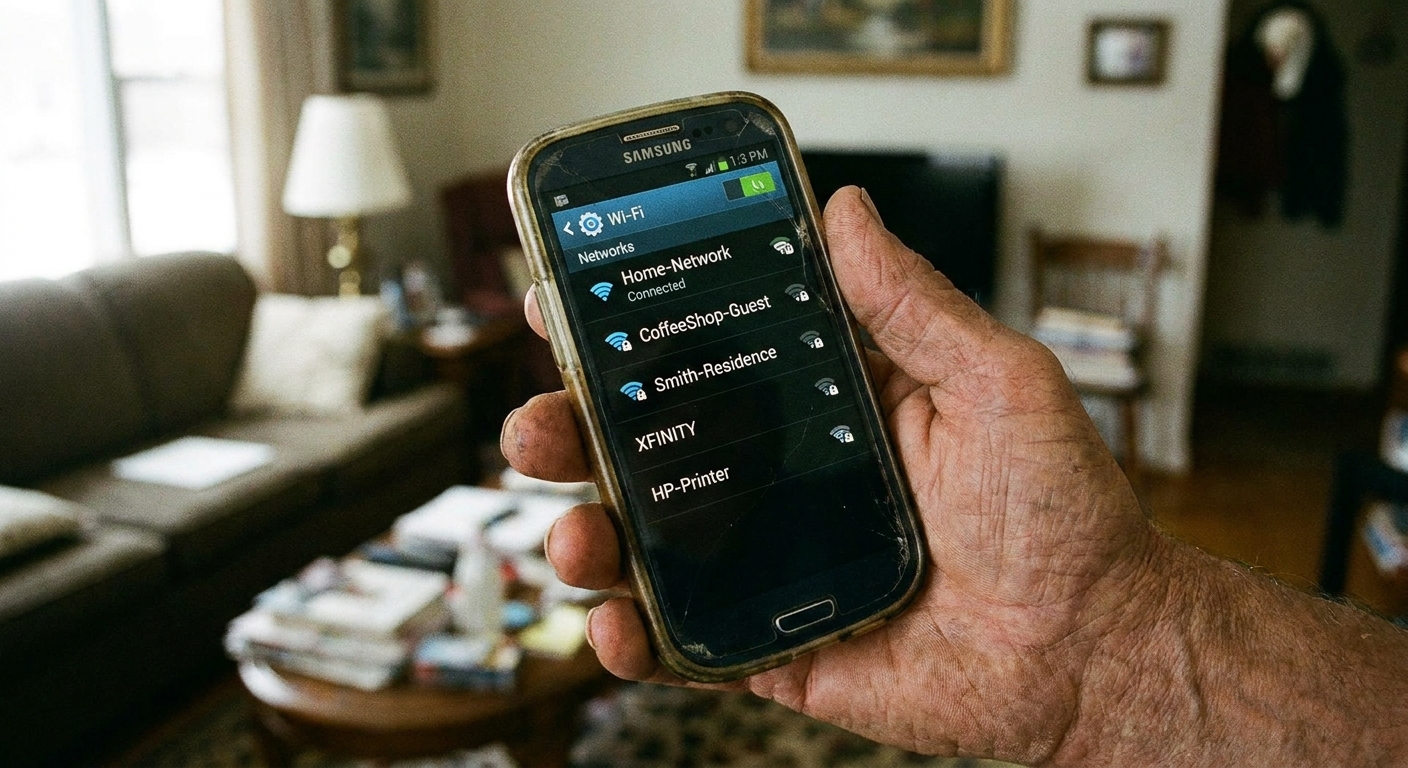
Step 1: Back up what matters, then wipe it like you mean it
If this phone used to be your primary device, treat it like it contains sensitive info even if it has been sitting in a drawer for two years.
Back up first (if you still need anything)
- Photos and videos
- Contacts (if they are not already in your Google or iCloud account)
- Notes, authenticator apps, and any work-related apps
Then do a full reset
- iPhone: Settings > General > Transfer or Reset iPhone > Erase All Content and Settings
- Android: Settings > System (or General management) > Reset options > Erase all data (factory reset)
Important: remove any old SIM card before you hand this device to a kid or leave it as a “house phone.” Also, on Android, remove Google accounts before reset when possible to avoid Factory Reset Protection headaches later.
Step 2: Update the OS and apps right away
After the reset, connect to Wi‑Fi and run updates first. On older phones, security updates are not endless, but you still want the newest version you can get.
- Install system updates
- Update the app store apps
- Only then start installing messaging apps
This one step often fixes weird issues like notifications not arriving, apps crashing, or permissions acting up.
Step 3: Lock it down for Wi‑Fi-only use
When I set one of these up for family, I aim for two things: fewer surprise charges (if a SIM is involved) and fewer privacy surprises.
Settings I recommend
- Remove the SIM if you truly want Wi‑Fi-only. If you keep a SIM in, turn off cellular data.
- Disable roaming if there is any chance a SIM will go back in for travel.
- Use a strong passcode and enable biometrics if available.
- Turn on auto-lock (1 to 2 minutes is a good balance).
- Review app permissions and be stingy, especially with contacts, microphone, camera, and location.
- Turn off Bluetooth when not in use.
Extra safety if this is for a kid
If you are setting this up for a child, focus on safe, age-appropriate messaging and tighter controls. I go into this in more detail in Safe Free Texting Apps for Kids Without a Cell Plan.
Step 4: Pick your “number” strategy
This is the part that confuses people. A Wi‑Fi-only device can still communicate, but whether it has a phone number depends on the app and the setup.
Option A: App-to-app messaging (no phone number needed day to day)
This is the easiest. Apps like Signal, WhatsApp, and Telegram often want a number for signup, but once you are set up, day-to-day chatting happens inside the app over Wi‑Fi.
One caution: keep access to the number you used to sign up. Some apps may occasionally require re-verification, and losing access to that number can be a hassle.
Option B: Get a second number for verification or VoIP calling
If you need a number for verifications or you want the device to place calls using data, you may want a dedicated number solution. I break down realistic options in Free Second Phone Number for Texting and Verification. Just remember that “free” number apps often come with limitations, ads, or verification restrictions, so read the fine print.
Option C: Use your existing ecosystem
- Apple: iMessage and FaceTime work great on Wi‑Fi when the device stays signed into your Apple ID. Using an email address for iMessage can be simpler than depending on a phone number.
- Google: Google Meet and Google Chat work well on Wi‑Fi with a Google account.
Step 5: Install a simple, reliable stack
If you load an old phone with 18 apps, it will run like a tired shopping cart. I like to keep it simple.
My basic setup
- One primary messenger your people actually use (WhatsApp, Signal, Messenger)
- One video call app if your messenger’s calling is not great for your group (Meet or Zoom)
- One authenticator app if needed (this avoids SMS-based 2FA in many cases)
- One cloud photo app if this device will take pictures (optional)
Decide on backups on purpose
Some messaging apps offer chat backups. That can be convenient, but it is also a privacy tradeoff. Take 60 seconds to decide what you want: backups on for convenience, or backups off to keep chats more locked down.
If you also want to send messages from a laptop when you are at home, pair this device with our walkthrough on sending free SMS from your computer, since many messaging apps include desktop versions and web logins.
Step 6: Make it feel like a real phone at home
This is where the repurposed phone goes from “spare device” to “I actually use this.”
Quality-of-life tweaks
- Use app-based calling over Wi‑Fi and allow microphone permission only for the apps you trust.
- Fix notifications: disable battery optimization for your messenger so messages do not arrive late.
- Set Do Not Disturb schedules so it is quiet overnight.
- Create a charging spot near your router or a common area, ideally with a stable cable and a safe charger.
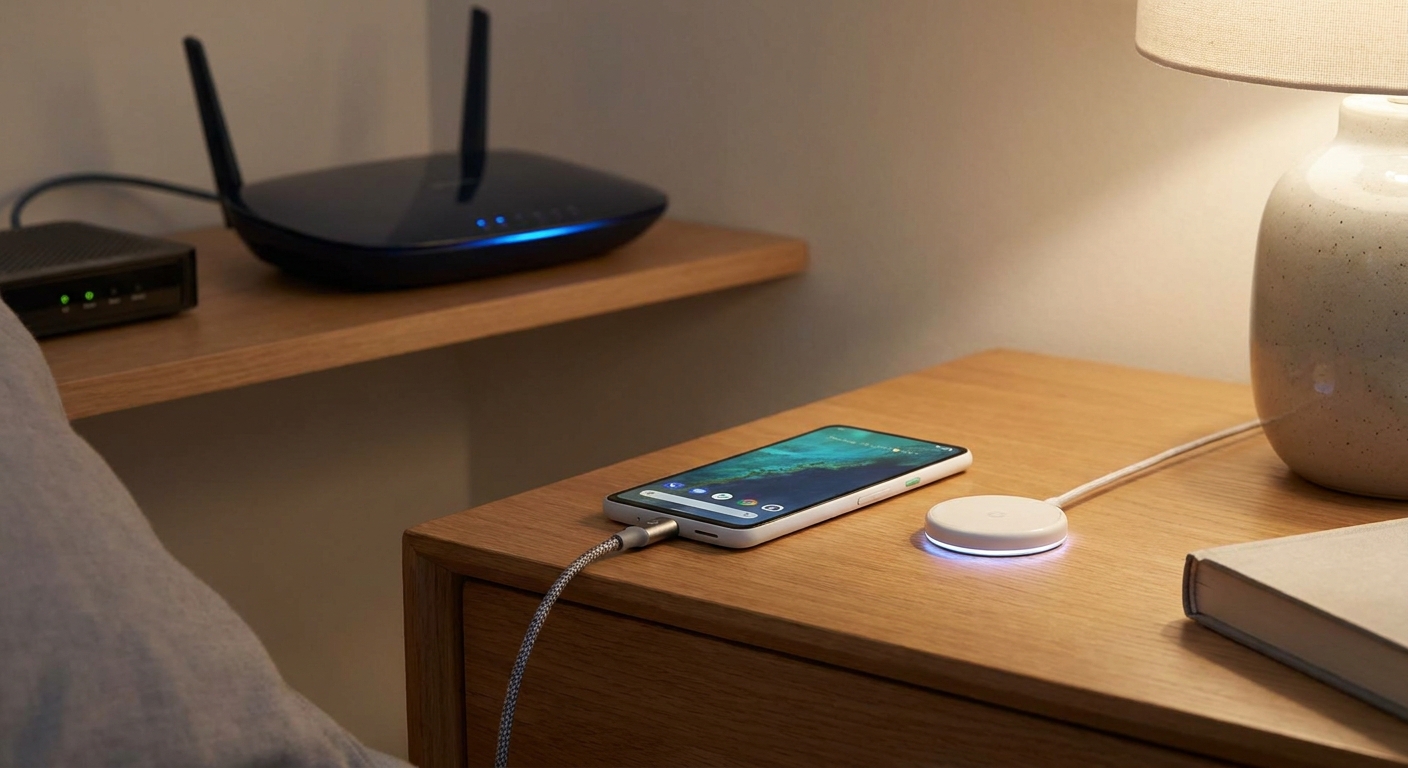
Step 7: Keep it secure over time
Old phones usually stop getting security updates before your habits stop being human. A little maintenance goes a long way.
- Install app updates regularly, especially for messaging apps.
- Delete apps you do not use. Fewer apps means fewer risks.
- Review signed-in accounts once a month. Log out of anything you do not recognize.
- Use unique passwords and a password manager if you can.
- Avoid random “cleaner” apps. Most are unnecessary and some are sketchy.
Common problems and quick fixes
Messages arrive late or not at all
- Disable battery saver and battery optimization for the messaging app
- Confirm the app can run in the background
- Check that notifications are allowed and not muted at the conversation level
The app says it needs a phone number to activate
- Use a temporary SIM for the one-time verification, then remove it
- Keep access to the number used for signup in case the app asks you to re-verify later
- If you are using a second-number app, expect some verification codes to be blocked
Wi‑Fi range is weak in parts of the house
- Move the router higher and more central if possible
- Consider a mesh system if you already struggle with Wi‑Fi coverage
- On the phone, “forget” and rejoin the network to clear old connection quirks
Budget wins: where the money gets saved
The savings are not complicated, which is why I like this trick.
- No new hardware: you already own the phone.
- No monthly plan: Wi‑Fi does the heavy lifting.
- Fewer add-on lines: you avoid that “it is only $20 more” creep that stacks up fast.
If your overall goal is trimming phone costs (not just messaging), my favorite first step is to audit your phone bill before switching. Most people find at least one thing they are paying for and not using.
FAQ
Can I use an old phone without a SIM card?
Yes. For Wi‑Fi-only communication, you can run the phone with no SIM inserted. You will still be able to use Wi‑Fi and most apps that do not require carrier service.
Will 911 or emergency calling work?
Do not count on it. Some phones may place emergency calls without an active plan if they can reach a compatible cellular network, but it varies by device, location, and network availability. A Wi‑Fi-only phone is not a dependable emergency device.
What is the best messaging app for this?
The best one is the one your people will actually use. For privacy-focused families I lean toward Signal. For big group chats and international family, WhatsApp is often the path of least resistance.
Can I text internationally for free on Wi‑Fi?
Often, yes. App-to-app messages are typically free over Wi‑Fi. For more ideas, see Send Free International Texts Without Carrier Fees.
My favorite way to use this setup
If you want one simple starter use case, make it a dedicated home Wi‑Fi communicator: one messaging app, one video calling app, no SIM, locked down, and always charging in the same spot. It is like having a family walkie-talkie that also sends photos, without a monthly bill attached.
And if you ever decide you do need something more robust, you still come out ahead. You bought yourself time to shop smart instead of buying a new phone in a hurry.