
I grew up in a family where somebody was always calling from a basement, a rural spot with one bar, or a different time zone entirely. If you have a capped plan, those weak-signal moments are where your minutes get wasted fast: calls drop, you redial, you repeat yourself, and suddenly a “quick call” turns into three.
The easiest fix is usually already built into your phone: native Wi-Fi calling.
Once it’s enabled, your phone can place and receive calls over Wi-Fi and, on many carriers, handle carrier SMS and MMS over Wi-Fi too. You keep using your normal Phone and Messages apps, and people still reach you at your regular number. No extra app required.
One important nuance: some carriers treat “Wi-Fi texting” as part of Wi-Fi calling, while others handle SMS and especially MMS or group MMS a little differently. If your texts act weird, it is not always your phone. Sometimes it is the carrier setup.
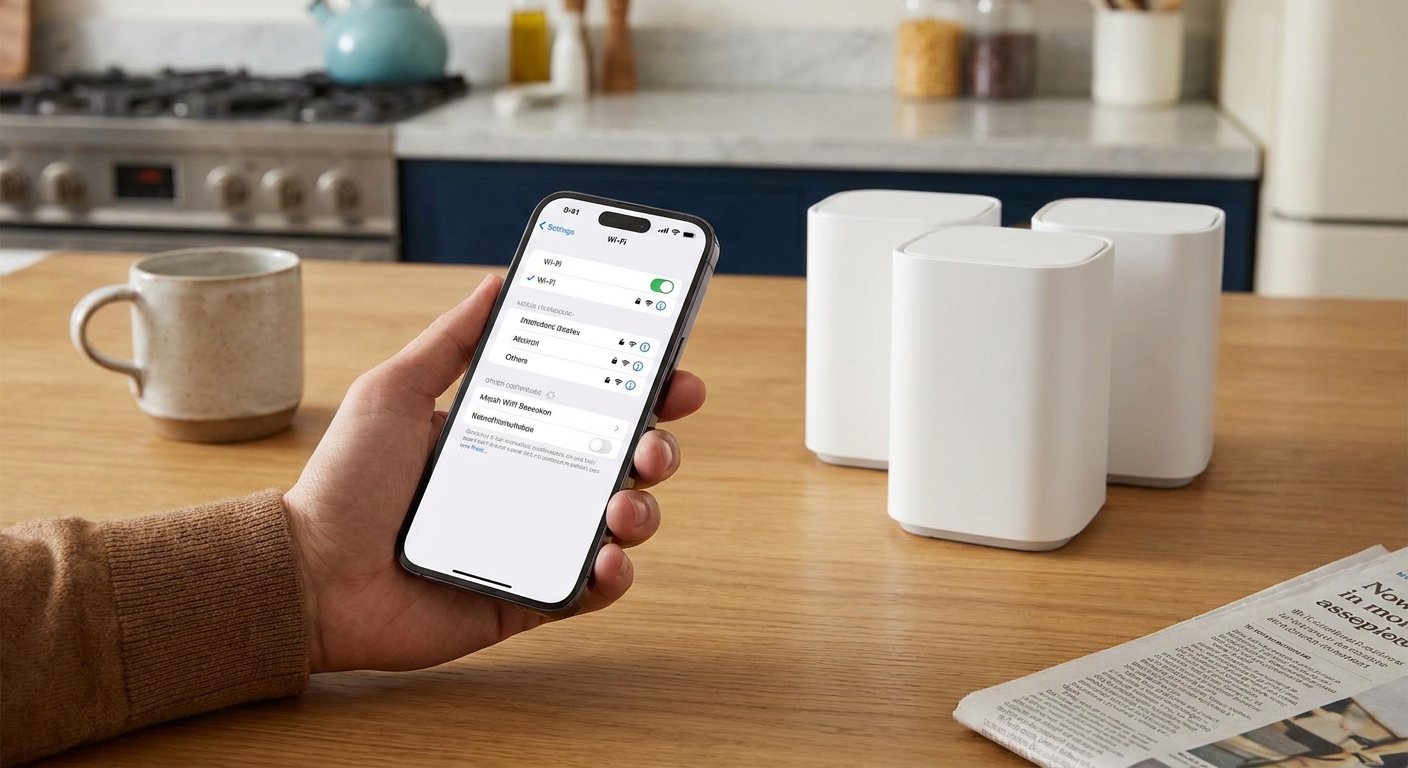
What Wi-Fi calling does (and does not)
Wi-Fi calling uses your Wi-Fi connection to reach your carrier’s network, instead of relying on your phone’s cellular radio. Think of it like a tunnel back to your carrier.
- You still use your phone number. Friends dial you normally. You dial out normally.
- It can reduce wasted minutes in low-signal areas. The big win is fewer dropped calls and fewer retries.
- Texting may work too, but it varies. SMS is often solid. MMS and group MMS are the most likely to be inconsistent, especially on bare-bones plans and some MVNOs.
- It does not automatically make billed minutes “free.” On many capped-minute plans, Wi-Fi calls still count as regular voice usage because it’s still your carrier’s voice service.
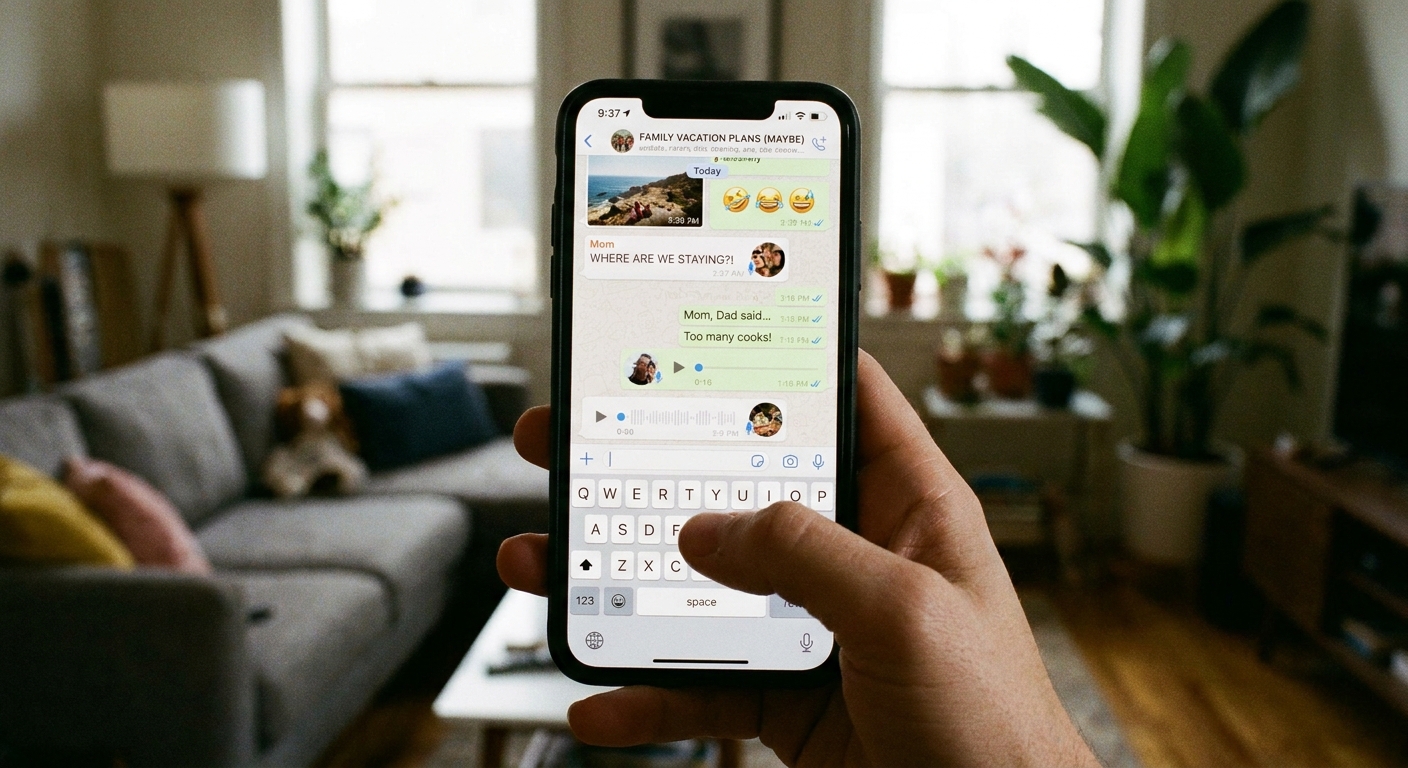
- It is not the same as WhatsApp or FaceTime Audio. Those are app-based, data calls. Wi-Fi calling is carrier-based calling using your number.
If your main goal is strictly “zero minutes used,” you may prefer app-based calling. If your goal is “stop wasting minutes on terrible signal,” native Wi-Fi calling is the cleanest built-in option.
Before you start: quick checklist
- Confirm your carrier supports Wi-Fi calling on your plan and device. Most major carriers do, but MVNOs can be inconsistent.
- Check your carrier account settings too. Some carriers require Wi-Fi calling to be enabled on the account side before the phone toggle works.
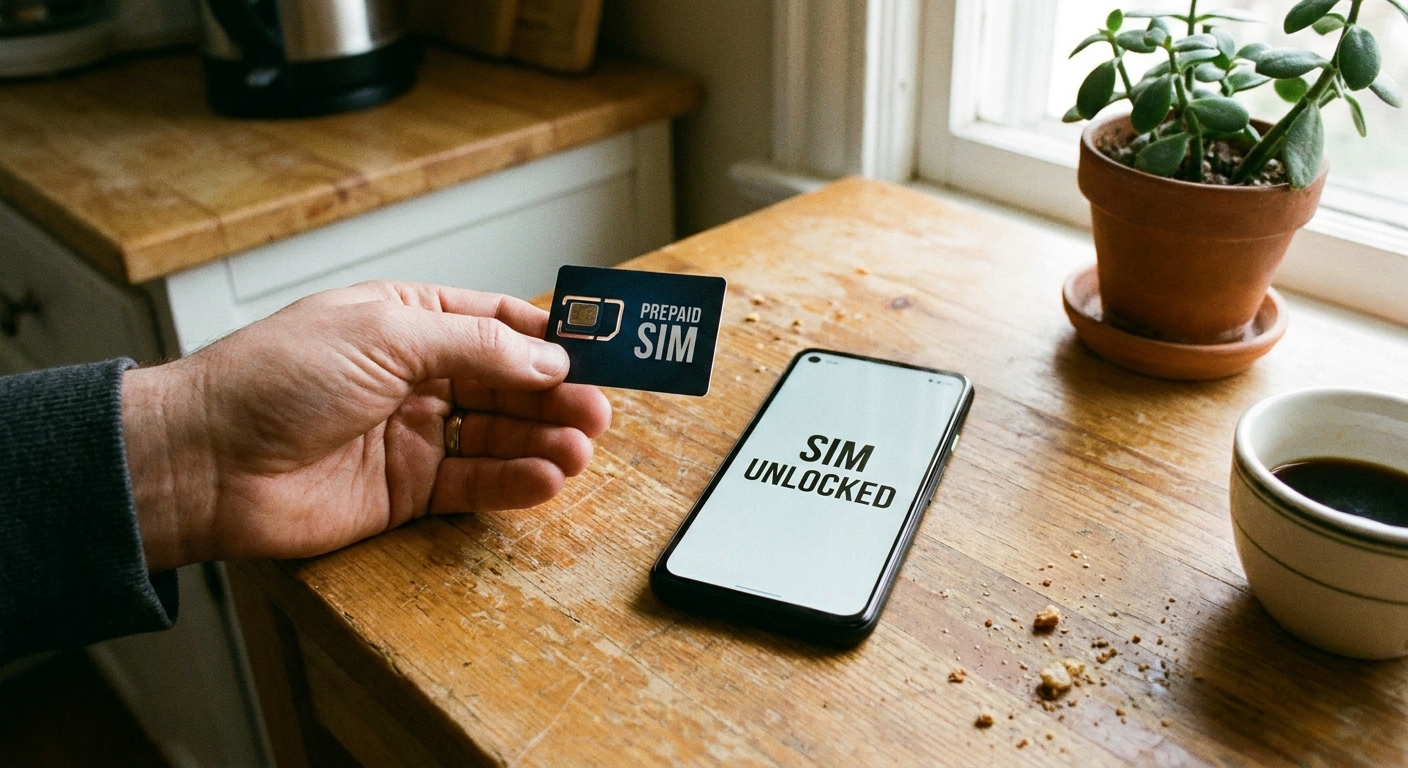
- Make sure you have an active SIM (or active eSIM) on that line. Many carriers will not provision Wi-Fi calling without it.
- Update your phone to the latest iOS or Android version you can run. On iPhone, also check for a carrier settings update if prompted.
- Watch for VoLTE or HD Voice requirements. Some carriers tie Wi-Fi calling eligibility to VoLTE (even if the setting is not obvious).
- Connect to Wi-Fi first. Setup goes smoother when the phone is already on a stable network.
- Have your E911 address ready. In the US, carriers often require an emergency address because 911 location works differently on Wi-Fi.
- Remember Wi-Fi quality matters. High latency, congestion, or captive portals (common on hotel Wi-Fi) can make Wi-Fi calling flaky.
If you’re shopping for budget service where Wi-Fi calling is a must-have, I keep an eye on which low-cost options do Wi-Fi texting well here: Best cheap MVNO plans for Wi‑Fi texting.
Enable Wi-Fi calling on iPhone
These steps cover most iPhones on current iOS versions. Wording can vary slightly by carrier.
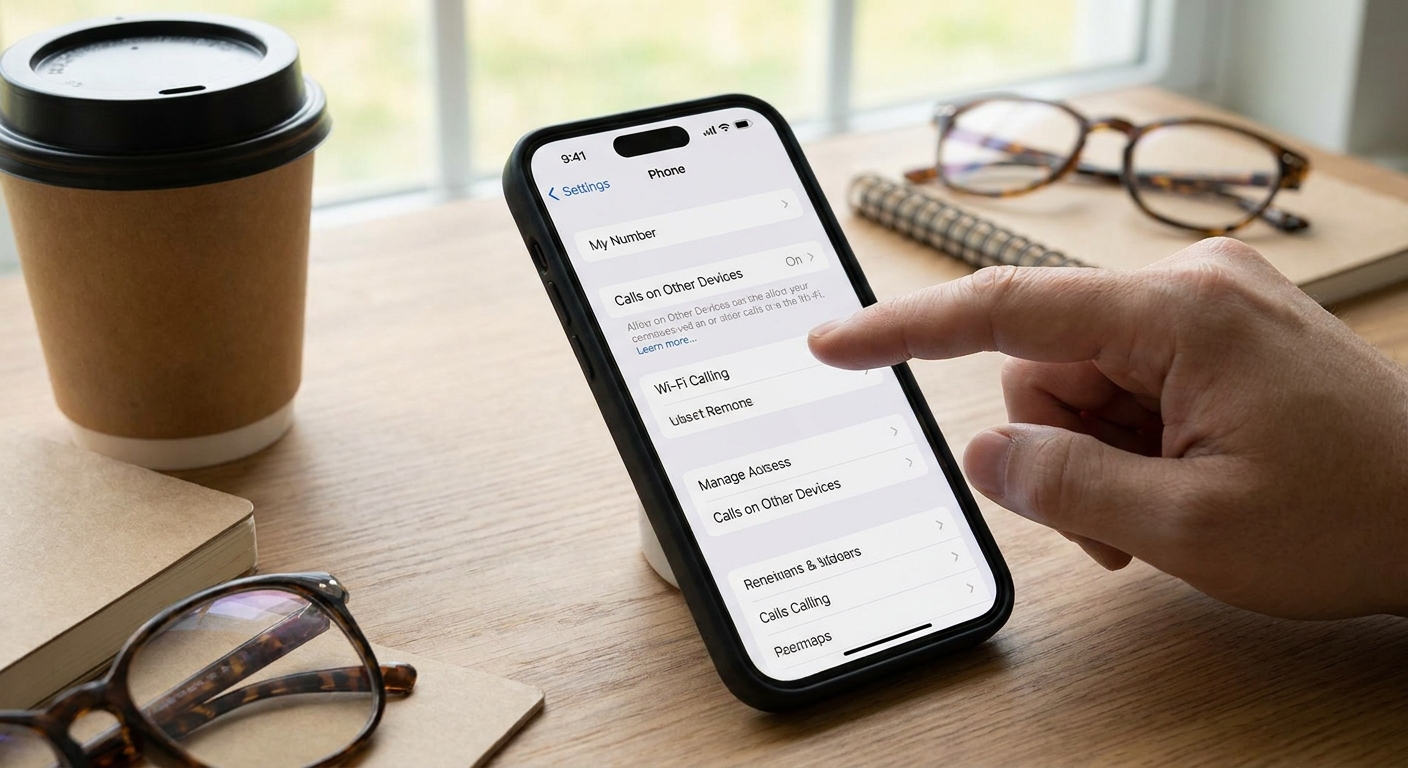
Option A: Turn it on from Phone settings
- Open Settings.
- Tap Phone.
- Tap Wi‑Fi Calling.
- Turn on Wi‑Fi Calling on This iPhone.
- If prompted, confirm or enter your Emergency Address.
Option B: Turn it on from Cellular settings (some carriers)
- Open Settings.
- Tap Cellular.
- Tap your line (if you have dual SIM).
- Tap Wi‑Fi Calling.
- Turn it on and complete the emergency address prompt.
How to confirm it’s working on iPhone
- You may see “Wi‑Fi” or “Wi‑Fi Calling” next to your carrier name in the status bar when connected to Wi-Fi.
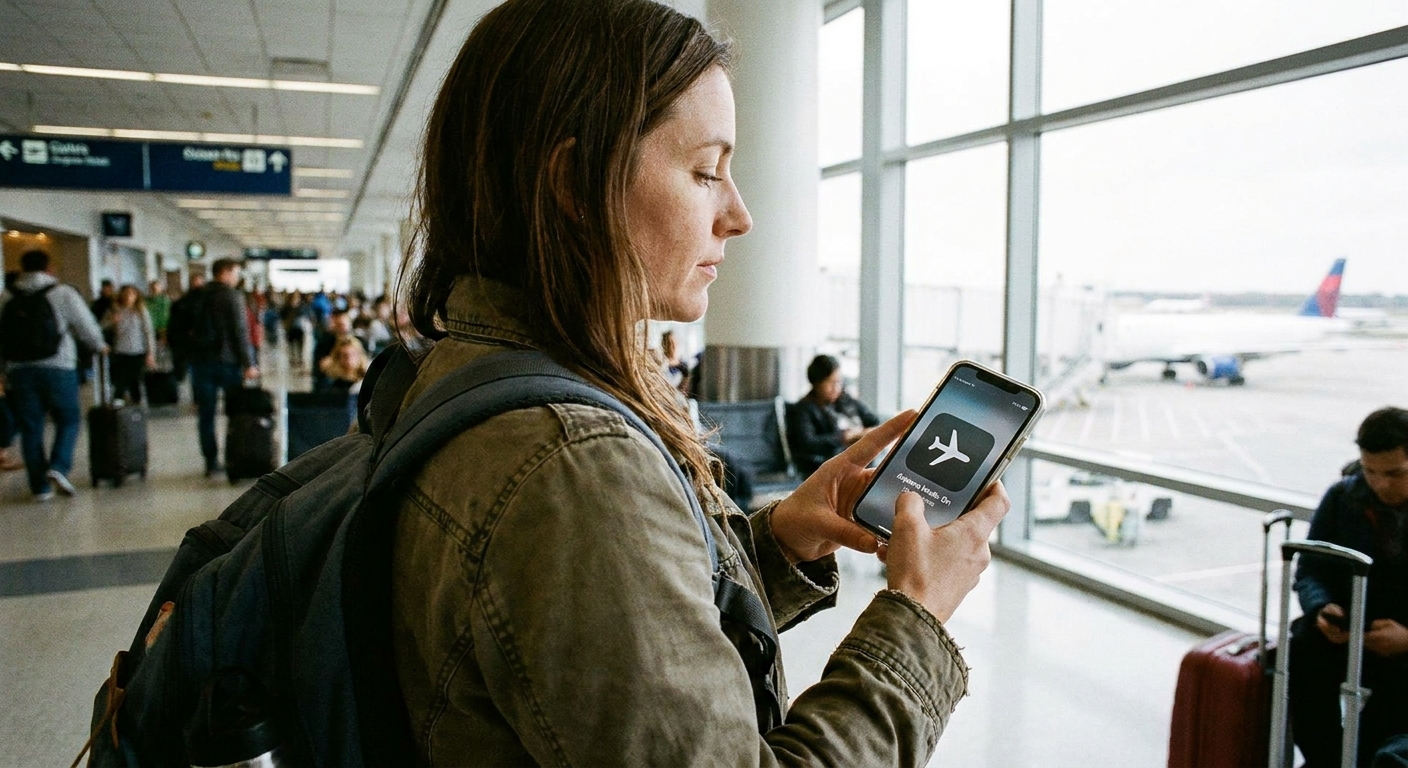
- Turn on Airplane Mode, then manually turn Wi‑Fi back on. If Wi-Fi calling is provisioned for your line, you can usually place a call after a moment.
Enable Wi-Fi calling on Android
Android menus vary a lot by brand. Here are two paths that cover most phones.
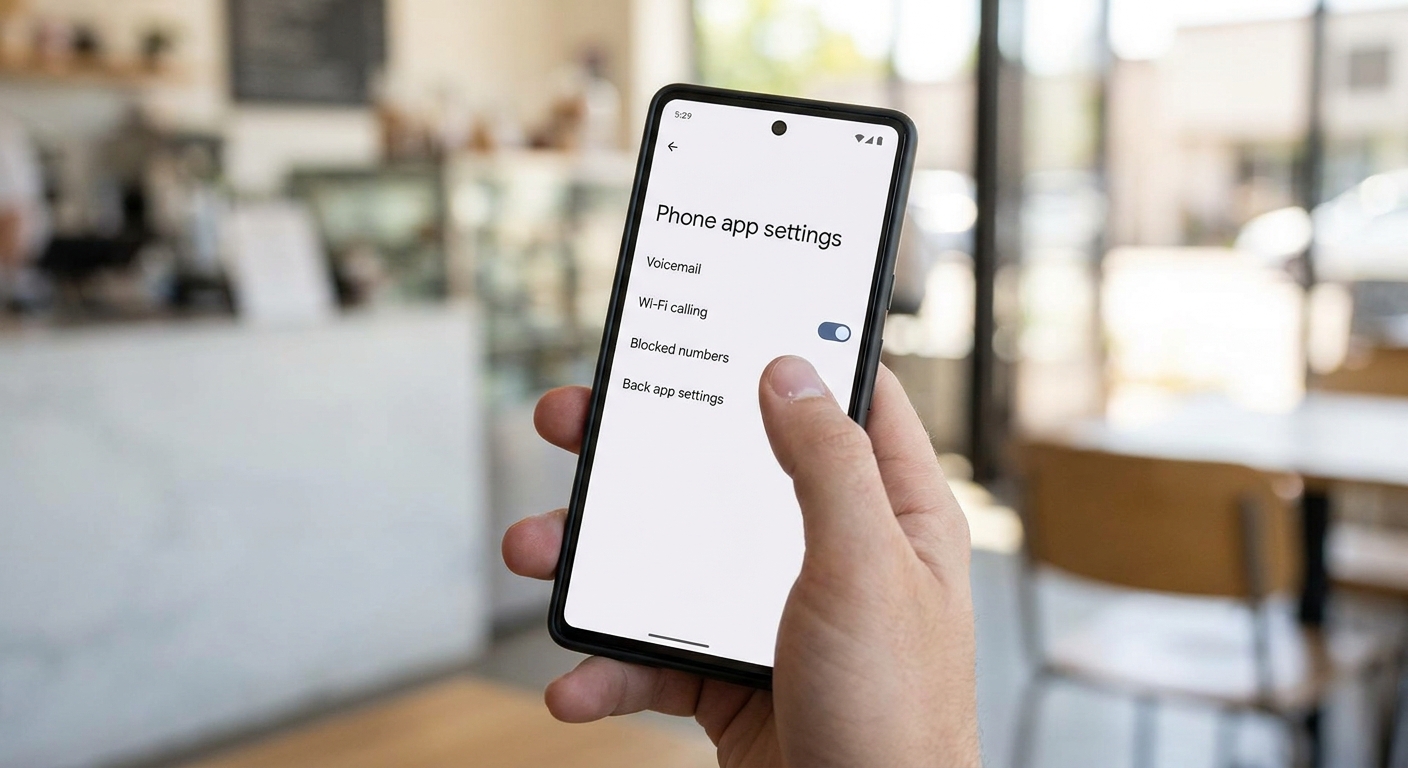
Method 1: Phone app settings
- Open the Phone app.
- Tap the menu (often ⋮).
- Tap Settings.
- Find Wi‑Fi calling and turn it On.
- If prompted, add or confirm your Emergency address.
Method 2: Android system settings
- Open Settings.
- Tap Network & internet (or Connections on Samsung).
- Tap SIMs or Mobile network.
- Tap Wi‑Fi calling and switch it On.
Samsung Galaxy shortcut path
Many Galaxy phones also have a quick toggle:
- Swipe down for Quick Settings.
- Look for Wi‑Fi Calling.
- Tap to enable. If it’s not there, tap the edit button to add it.
How to confirm it’s working on Android
- Some phones show a small Wi‑Fi calling icon in the status bar.
- Test with Airplane Mode on, then enable Wi‑Fi and place a call. If it is set up correctly, it will usually connect after a brief moment.
Make it help on a capped plan
This is the fine print that saves you money. Wi-Fi calling might not reduce the minutes your carrier bills, but it can reduce the wasted minutes that come from bad coverage.
1) Set Wi-Fi preferred (if you have it)
Some Android phones and carriers offer a preference like Call over Wi‑Fi, Wi‑Fi preferred, or Cellular preferred.
- Wi‑Fi preferred means the phone will try to use Wi-Fi calling whenever Wi-Fi is strong.
- Cellular preferred means Wi-Fi calling may only kick in when cellular gets weak.
If you want fewer drops at home or at work, Wi‑Fi preferred is usually the setting you want.
On iPhone, you do not always get a preference switch. The Airplane Mode test below is the simplest way to force Wi-Fi calling when you need it.
2) Use Airplane Mode strategically at home
If you have strong home Wi-Fi but unreliable cell signal, this trick can prevent bouncing between cellular and Wi-Fi mid-call:
- Turn on Airplane Mode.
- Turn Wi‑Fi back on.
- Place calls and texts while staying locked to Wi-Fi.
This is especially useful when your phone likes to hunt for a tower during a call, which is where a lot of wasted minutes come from.
3) Turn on “Send as SMS” (iPhone) so texts do not stall
If iMessage fails, your phone can fall back to SMS instead of leaving a message stuck:
- Open Settings.
- Tap Messages (on some iOS versions it appears under the Apps list).
- Enable Send as SMS.
It does not reduce minutes, but it prevents the “I had to call you because my text would not go through” problem.
4) Watch for picture and group chat gotchas
Picture messages and group texts can behave differently on budget plans, and sometimes they trigger extra charges or fail in weird ways. If your plan is very bare-bones, it’s worth understanding what counts as “extra.” I broke down the usual traps here: Why group chats and picture messages cost extra on basic plans.
Common problems and quick fixes
Wi-Fi calling toggle is missing
- Carrier does not support it for your plan, or it is blocked on that line.
- Phone is not approved for Wi-Fi calling on that carrier (common with imported or older models).
- Software update needed. Update iOS or Android and also install any carrier settings update on iPhone.
- Provisioning issue. Some carriers require VoLTE or HD Voice to be enabled and an active SIM on the line before the toggle appears.
Calls still go over cellular even on Wi-Fi
- Wi-Fi signal is weak, congested, or behind a restrictive network.
- Your phone is choosing cellular because it looks stronger in the moment. Try the Airplane Mode + Wi‑Fi lock-in test.
- On Android, look for a setting like Wi‑Fi preferred.
Texts are delayed on Wi-Fi calling
- Restart the phone and your Wi-Fi router if it’s your home network.
- Toggle Wi-Fi calling off, wait 10 seconds, then toggle it back on.
- If it is mostly picture messages or group texts failing, you may be hitting plan limitations, MVNO quirks, or an APN issue on Android.
Emergency address prompt keeps coming back
- Complete the address entry fully and save it.
- If you have multiple lines (dual SIM), confirm the address for the correct line.
- Carrier account settings can override device settings. You may need to confirm E911 in your carrier account dashboard too.
Wi-Fi texting vs free texting apps
I like Wi-Fi calling because it feels invisible. Same number, same apps, fewer headaches. But it is not the only tool.
- Wi‑Fi calling and texting: uses your carrier number; often bills like normal voice and messaging; best for reliability and keeping your existing number.
- Free texting apps: use data and app accounts; usually do not count toward voice minutes; best when you truly need to avoid voice usage and both sides are willing to use the app.
If you want to compare app-based options, start here: Guide to free texting. If you’re trying to keep things cheap overall, my broader hub is here: Guide: Phone and Bills.
My capped-plan setup
When I’m helping a friend stretch a limited plan, I keep it simple:
- Enable Wi-Fi calling on the device.
- Confirm E911 address.
- At home, use Airplane Mode with Wi-Fi on if cell signal is spotty.
- Make one test call and one test text while forced onto Wi-Fi.
- Keep one backup option ready, usually a free messaging app for long chats if minutes are tight.
In my experience, that combo covers most of the “my calls drop and I keep retrying” problems that quietly drain capped plans.
FAQ
Will Wi-Fi calling reduce my minute usage?
Sometimes, but not in the way people hope. Many carriers bill Wi-Fi calls like normal calls because it’s still their voice service. The savings usually come from fewer dropped calls, fewer retries, and not needing to jump to a pricier plan just to get reliable calling indoors.
Does Wi-Fi calling work internationally?
Often yes, but this is where bill shock happens. From abroad, Wi-Fi calling may behave like you are calling from the US on some carriers, but the number you dial can still trigger international long distance.
As a practical rule of thumb, calls to US numbers are often treated like domestic calls, while calls to non‑US numbers are often billed as international long distance, even if you are on Wi-Fi the whole time. Carriers differ, so check your carrier’s rules before you travel. For roaming-related surprises, see: Avoid international SMS roaming charges abroad.
Can I use Wi-Fi calling with an MVNO?
Sometimes. Some MVNOs fully support it, others support it only on specific devices, and some skip it entirely. If Wi-Fi calling is a deal-breaker, verify it before you switch and consider options listed in my MVNO Wi‑Fi texting roundup.
Is Wi-Fi calling secure?
It’s generally comparable to your carrier’s normal voice service, and it is typically encrypted between your phone and the carrier. But it is not end-to-end encrypted the way some privacy-focused apps are. The safety of the Wi-Fi network still matters too, so avoid sketchy public Wi-Fi for sensitive calls when you can. If public networks are unavoidable, these habits help: Free public Wi‑Fi messaging without a premium VPN.