
I grew up in a big, scattered family, which meant there was always someone who needed a quick update, a ride confirmation, or a “we made it” text. The problem was that texting adds up fast if you are paying for extra lines or international messaging. One of my favorite budget moves is turning an old iPad or Android tablet into a Wi-Fi texting device. No monthly phone plan required.
Here’s the honest reality, though: sending a “standard SMS” message (the kind that goes to a normal phone number) without any cellular service is only possible if you use a service that provides a phone number and bridges your Wi-Fi connection to the SMS network. The best-known option is Google Voice, but it is primarily available for consumer use in the United States, and availability varies by country. Apple’s iMessage can also feel like texting, but it is not SMS unless it’s routed through an iPhone with cellular service. I’ll show you the cleanest ways to set this up, plus what works for iPads, Android tablets, and mixed households.
What “free texting” can mean
People use “texting” to describe a few different things. Knowing which one you need saves a lot of setup frustration.
- App-to-app messages (free, easiest): WhatsApp, Signal, Messenger, Telegram. Great, but the other person usually needs the same app.
- iMessage (Apple-to-Apple): Free between Apple devices using an Apple ID. It looks like texting, but it is not true SMS to Android users.
- SMS and MMS to any phone number (what most people mean): You need a service that gives you a number and sends texts over Wi-Fi on your behalf. Google Voice is the most common choice in the U.S., but MMS, group threads, and short codes can be hit or miss depending on the carrier and the situation.
If your goal is “my Wi-Fi-only tablet should text any phone number,” focus on Google Voice. If your goal is “my family with iPhones should message me,” iMessage is perfect.
Before you start: quick checklist
- Reliable Wi-Fi where you plan to use the tablet (home, school, work, library).
- A Google account (for Google Voice) or Apple ID (for iMessage on iPad).
- Notifications enabled so you actually receive messages in real time.
- A plan for one-time verification if an app asks for a code. Google Voice usually requires a real phone number to claim a number, and WhatsApp and Signal often need phone-number verification during setup too.
If you are also trying to cut down a bigger monthly bill, my go-to starting point is auditing what you pay for now. This walkthrough can help you spot the waste before you switch anything: Audit Your Phone Bill Before Switching.
Option 1: Google Voice (best for SMS)
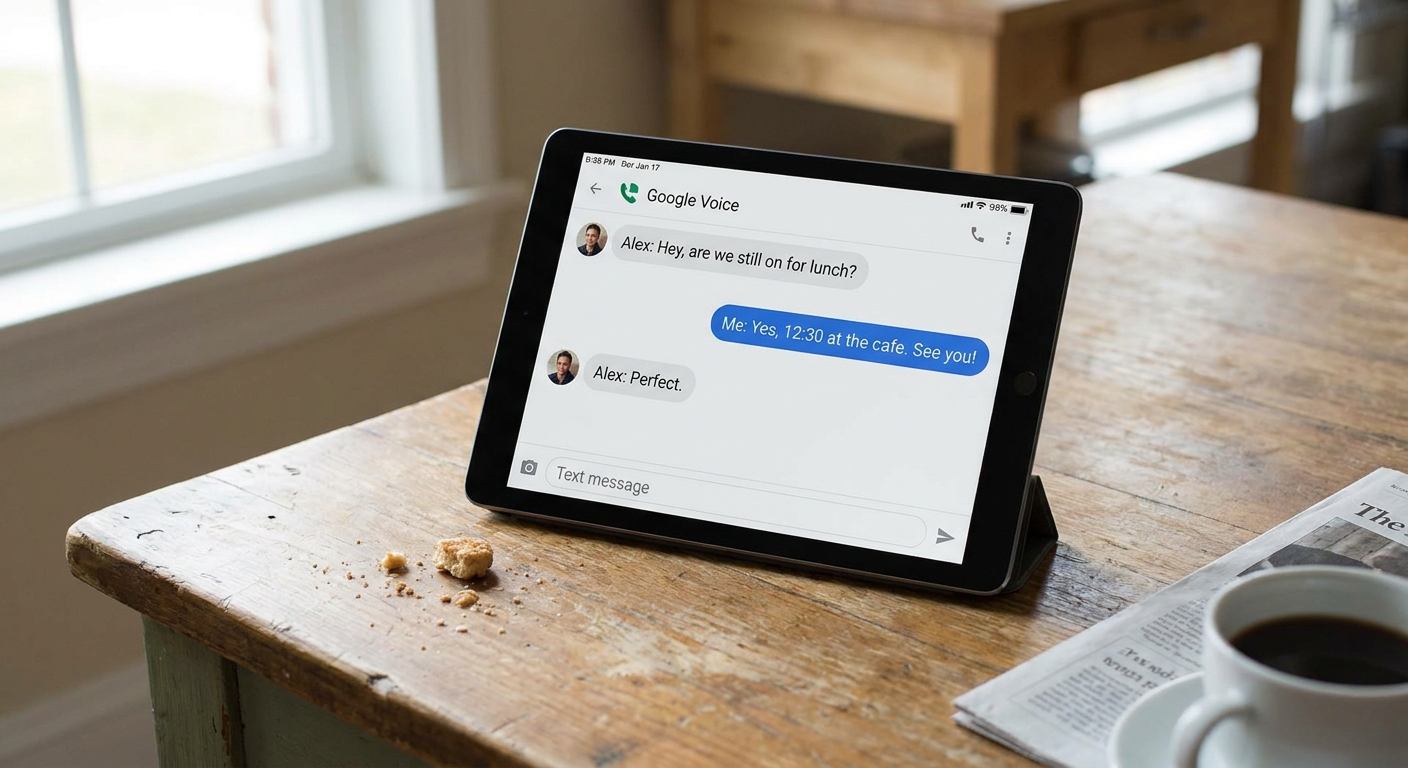
Google Voice can give you a phone number and lets you call and text over Wi-Fi. On a tablet, this is the closest thing to true “tablet SMS” without a cellular plan.
Two quick reality checks: Google Voice consumer accounts are mainly a U.S. thing, and most people will need to verify with an existing phone number to claim a Voice number in the first place.
Step 1: Install Google Voice
- Android tablet: Install “Google Voice” from the Play Store.
- iPad: Install “Google Voice” from the App Store.
Step 2: Sign in and claim a number
Open the app, sign in, and follow the prompts to choose a number. In many cases, Google asks you to verify with an existing U.S. mobile or landline number before it will let you claim a free number.
Frugal workaround note: If you do not want ongoing forwarding, you can usually disable call forwarding later and just use the app over Wi-Fi. The number itself still lives in your Google account.
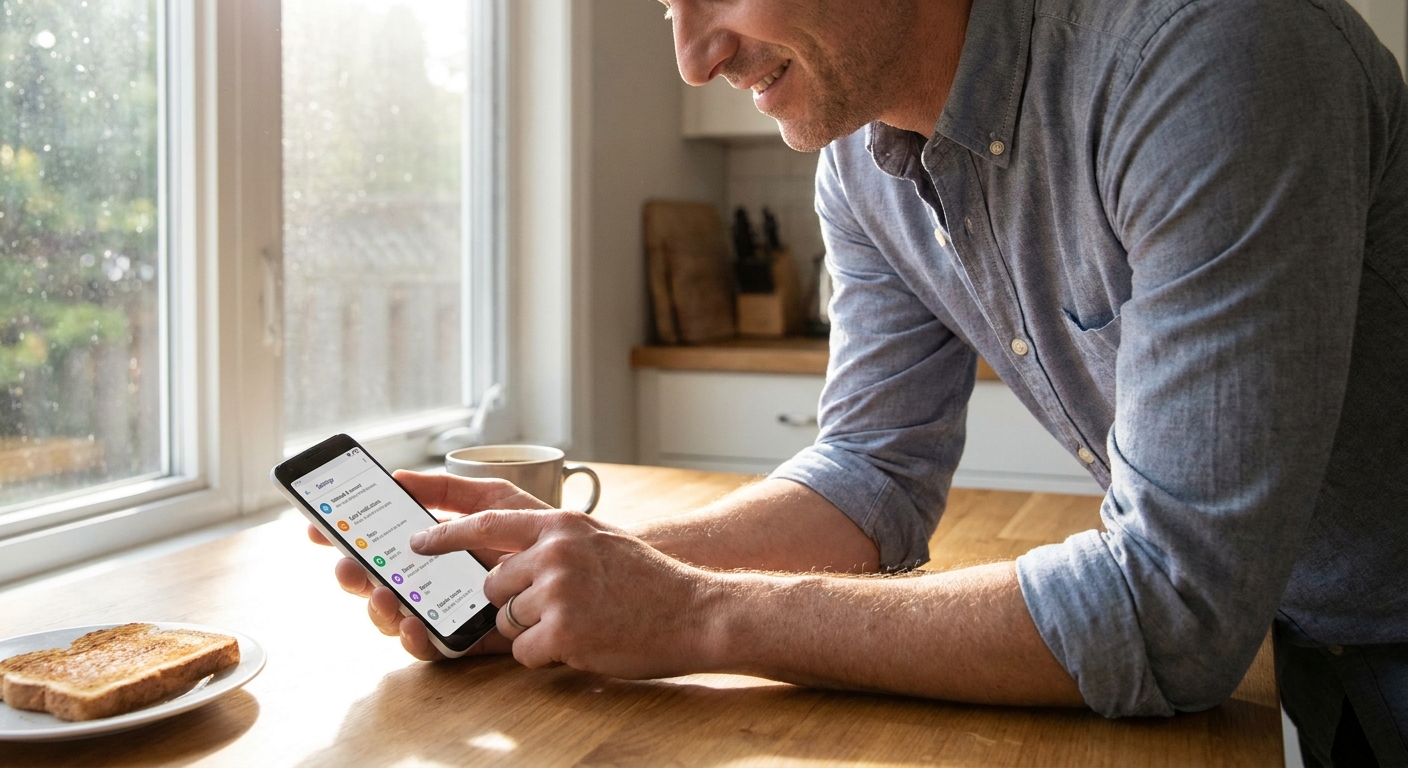
Step 3: Turn on message notifications
- In Google Voice settings, make sure Messages notifications are enabled.
- On your tablet, go to system settings and allow notifications for Google Voice.
- Disable aggressive battery optimization for Google Voice on Android if messages arrive late.
Step 4: Send a test message
Text a friend who is not on the same app. If they can reply and you receive it on the tablet, you are set.
Privacy note: Google Voice is convenient, but it is tied to your Google account and the way Google handles data. For more private conversations and group chats, I lean on Signal (more on that below).
Option 2: iMessage (best for iPad)
If your circle uses iPhones, iMessage turns an iPad into a very solid “texting” device on Wi-Fi.
Step 1: Sign in to iMessage on iPad
- Open Settings on the iPad.
- Scroll to Messages.
- Turn on iMessage and sign in with your Apple ID.
Step 2: Make sure you can be reached
In Send & Receive, choose where people can reach you (usually your Apple ID email, and sometimes a phone number if you also have an iPhone on the same Apple ID).
Important limitation: A Wi-Fi-only iPad does not gain SMS just by turning on iMessage. To send and receive green-bubble SMS from an iPad, you typically need either Google Voice, or an iPhone with an active cellular plan that is signed into the same Apple ID with Text Message Forwarding enabled. Once that is set up, the iPhone does not have to be physically next to the iPad all day, but it does need to be on and connected so it can relay the messages.
Step 3: Turn on FaceTime (optional)
FaceTime is a free add-on to keep family communication simple, especially for grandparents who prefer tapping one button over typing.
Option 3: Messaging apps (best for mixed)
Even if you set up Google Voice, I still recommend having at least one app-to-app messenger for faster delivery, better group chats, and better privacy.
- Signal: Great privacy, simple interface. Usually requires a phone number for initial verification.
- WhatsApp: Very common internationally and works well on Wi-Fi, but tablet support can vary and it typically requires phone-number verification to set up.
- Telegram: Handy for groups and multi-device use. Also typically starts with phone-number verification.
If international texting fees are part of the pain you are trying to avoid, you will probably like this: Send Free International Texts Without Carrier Fees.
Make it feel like a phone
Do not miss messages
- Turn off battery restrictions for your texting app (Android).
- Allow notifications including lock screen alerts, otherwise you will only see messages when you open the app.
- Check Wi-Fi stability if messages seem delayed. Weak Wi-Fi causes late delivery that feels like missing texts.
Use contacts like normal
- Sync your Google contacts or iCloud contacts so you are not manually typing numbers.
- Pin the texting app to your dock or home screen.
- If the tablet supports it, set up a simple lock screen method so you are not constantly typing a long password.
Protect yourself from scams
Tablets are great for kids and older relatives, but they are also easy targets for “verification code” scams. A basic rule in my family: if anyone asks you to read them a code you received in a text, it is almost always a scam.
Troubleshooting
“Google Voice won’t let me get a number”
- First, confirm you are in a region where Google Voice is available for your type of account.
- Try a different area code or nearby city.
- If it demands a verification number, you may need to use a real U.S. mobile or landline number one time to claim the Voice number.
- Google sometimes restricts number claims. If you already claimed a number in the past, you may be limited.
“I can send texts, but I’m not receiving replies”
- Check notification permissions.
- Open the app and confirm you are signed into the correct account.
- On Android, remove battery optimization for the app.
- Verify Wi-Fi is stable.
“Group texts or pictures are messy”
MMS and group messaging depend on the service, carrier quirks, and sometimes the exact type of group thread. Google Voice can handle MMS in many U.S. cases, but group MMS can be inconsistent. If you need reliable photos and group threads, move that group to Signal or WhatsApp instead of forcing MMS to behave.
Emergency texts and 911
A Wi-Fi-only tablet is not a replacement for a real phone in emergencies. In general, you should not count on a Wi-Fi-only tablet to place 911 calls the way a cellular phone with an active plan can. Some Apple devices have emergency features depending on model and region, but it is not a substitute for having a real emergency calling option.
If you are setting this up for a child or an older relative, I recommend being clear: it is for everyday communication, not emergency response.
My cheap, reliable setup
- Google Voice for SMS to any phone number over Wi-Fi (where available).
- Signal for family and close friends (better privacy and group chats).
- iMessage on iPad if you are in an Apple-heavy family.
That combo covers almost every scenario I run into, without adding a monthly tablet line.
If you want more ways to cut your communication costs beyond texting, the main hub I keep updated is here: Guide to Free Texting and for bigger bill strategies: Guide to Saving Money.
FAQ
Can my Wi-Fi-only iPad send SMS to Android?
Not by itself. For true SMS to Android numbers, use a service like Google Voice on the iPad (where available). iMessage works only between Apple devices unless you also have an iPhone with an active plan set up to relay SMS using Text Message Forwarding.
Can an Android tablet send and receive SMS without a SIM card?
Yes, if you use an app that provides a phone number and sends SMS over Wi-Fi (Google Voice is the most common example in the U.S.). The built-in SMS app typically needs a SIM and carrier service.
Will I get bank verification codes and short code texts?
Sometimes, but do not count on it. Many banks and services refuse to send 2FA codes to VoIP numbers, and Google Voice numbers can be treated as VoIP. If those verification texts are a must-have for you, keep a regular mobile number for that purpose.
Is it really free?
The apps are usually free, but you still pay for internet access. If you are on home Wi-Fi, that is effectively “free texting” in the sense that you are not paying per message or adding a line.
Will this work while traveling?
Yes, as long as you have Wi-Fi. For travel, I like having both Google Voice and a messenger app, because some networks block certain services while others still work.