
I grew up in a family where someone was always moving to a different state (and somehow my aunt always picked the priciest carrier plan). So I started obsessing over “free” texting apps and, more importantly, what they cost in data when you are not on Wi-Fi. Because the sneaky part is this: the app might be free, but the overage fee is very real.
This guide breaks down how much data popular messaging apps typically use, what features burn through your data the fastest, and the exact settings that usually make the biggest difference on limited plans.
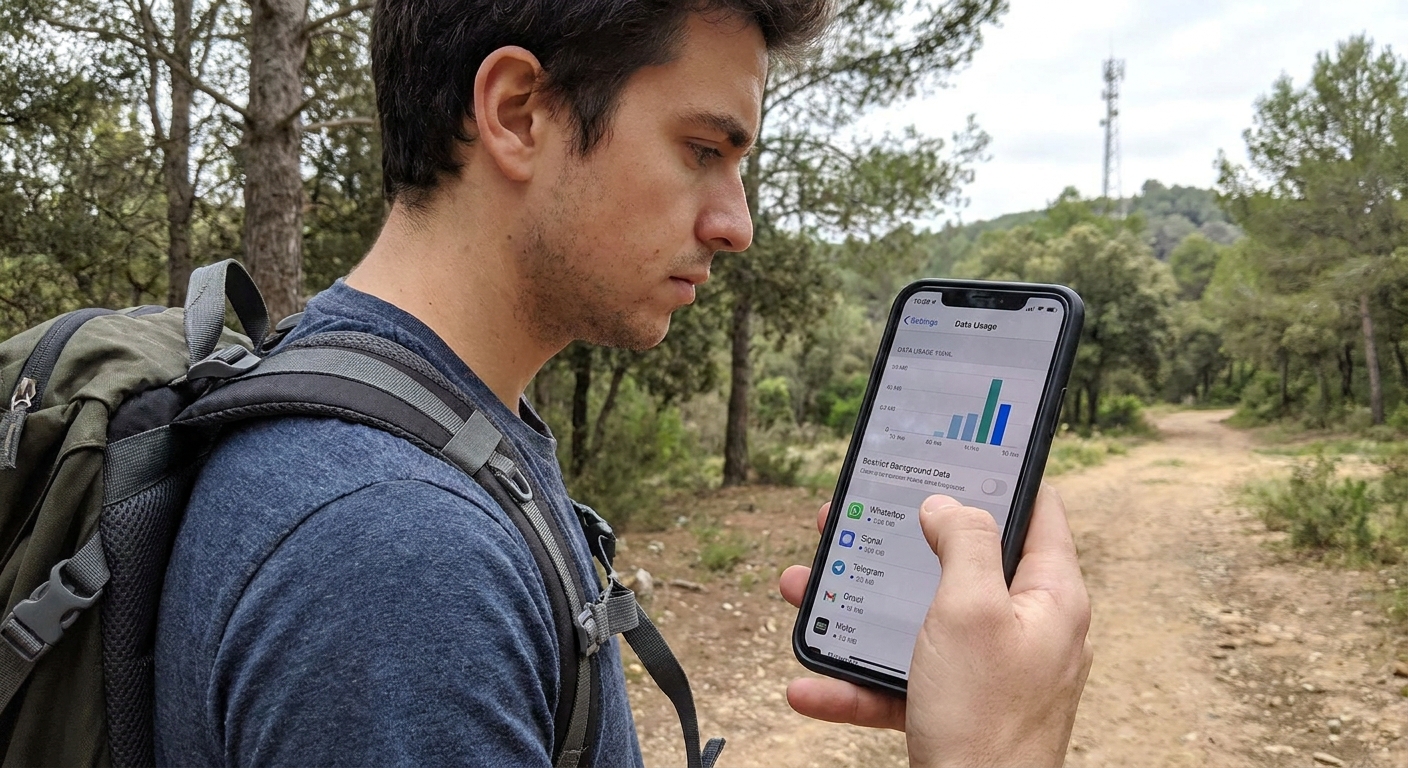
Quick take: text is cheap, media is not
If you are sending plain text only, most messaging apps use surprisingly little data. The problem is that modern “texting” includes photos, voice notes, stickers, GIFs, link previews, read receipts, typing indicators, and especially video. Those features can turn a tiny chat into a steady drip of data all day.
These are typical estimates, not lab measurements. Your numbers will vary by resolution, compression, codec, call quality, and even how stable your signal is.
- Plain text messages: Usually a few KB each (often effectively negligible compared to media and calls).
- Photos: Commonly 200 KB to 3+ MB each, depending on compression and whether you send as “document” or “original.”
- Voice messages: Often under ~1 MB per minute, but can run higher depending on the app and encoding (roughly ~0.3 to 1.5 MB per minute is a safer budgeting range).
- Video clips: Commonly 3 MB to 30+ MB for short clips. Longer or higher quality can be much more.
- Video calls: Often 3 MB to 15+ MB per minute at low to standard quality, but HD or strong connections can push 20 to 30+ MB per minute in real use.
So if you mainly type words, you can stretch a small data plan a long way. If your chats are heavy on video calls or auto-downloaded media, you can burn through 1 GB faster than you think.
Typical data use by app
Data usage varies by call quality, compression, and network conditions. I treat the ranges below as “budgeting numbers” when I am trying to keep someone under a cap, not as guarantees.
| App | Text-only chat | Voice call (per minute) | Video call (per minute) | What usually drives usage |
|---|---|---|---|---|
| Very low | ~0.3 to 1.0 MB | ~3 to 12+ MB (can be higher in HD) | Media auto-download, video calls | |
| Facebook Messenger | Low | ~0.5 to 2.0 MB | ~5 to 20+ MB (can spike higher) | GIFs, link previews, video calls |
| Telegram | Very low | ~0.3 to 1.2 MB | ~4 to 15+ MB | Large file sharing, auto-download |
| Signal | Very low | ~0.4 to 1.5 MB | ~5 to 20+ MB | Call quality, media downloads, HD sharing choices |
| iMessage | Very low | N/A | N/A | Photos and videos sent at higher quality |
| Google Messages (RCS) | Very low | N/A | N/A | Photo and video size, high-res sharing |
Note: “Text-only chat” stays low across the board. The real swing is calls and media, plus whether the app downloads stuff you did not ask for.
Also, remember the confusing bit: iMessage and RCS use data when they send as iMessage or RCS. If they fall back to SMS, that does not use mobile data. If they fall back to MMS for a photo, that often counts against carrier messaging limits (and can have its own fees) depending on your plan.
What quietly burns data
1) Auto-download on cellular
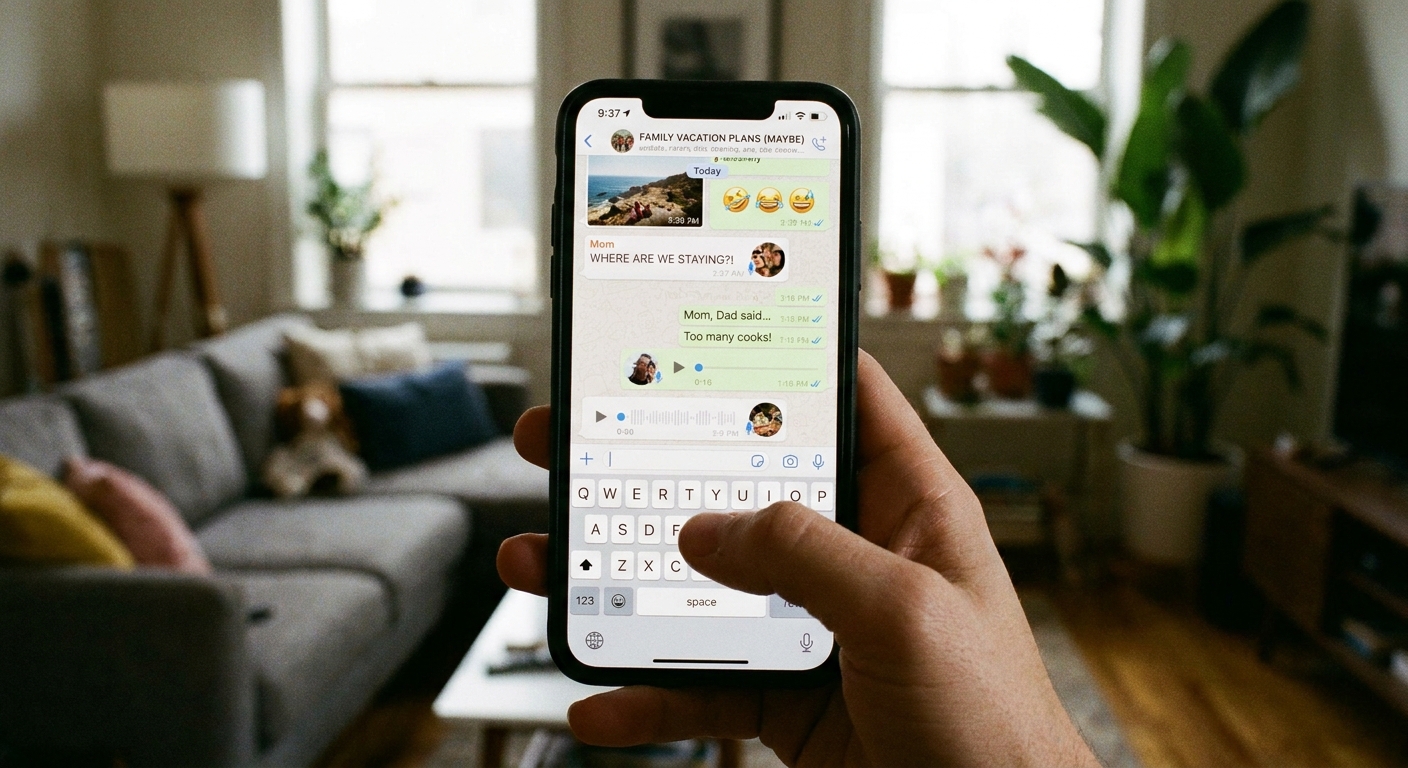
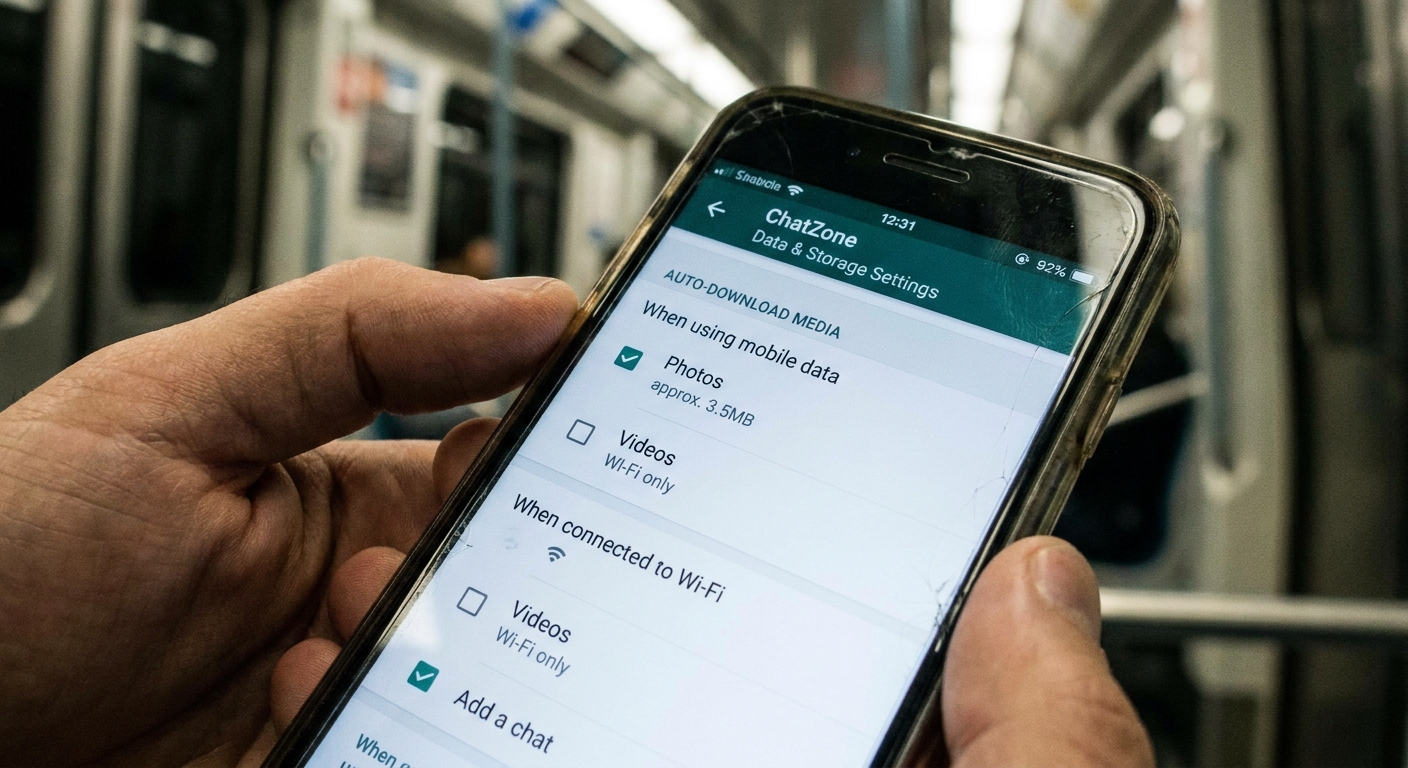
This is the number one culprit. In busy group chats, auto-download turns your phone into a little media vacuum, pulling down every meme, video, and forwarded clip whether you open it or not.
2) Cloud backups and sync
Some apps back up chat history and media automatically. If that backup runs on cellular, it can be a slow leak that adds up over a month, especially after reinstalling or switching phones.
3) Link previews
When an app generates a preview, it often fetches extra data: page titles, images, and metadata. A single preview is not huge, but it is constant in some chats.
4) High-quality photo and video sending
“HD” toggles and “send original” options are great when you are on Wi-Fi. On mobile data, they are budget killers. Many apps compress by default, but HD modes can dramatically increase file size.
5) Video calling on poor signal
Bad reception can cause quality adjustments and retries. Even if the app lowers resolution, unstable connections can still waste data over time.
Settings that cut usage fast
If you only change a few things, start here. These are the tweaks that usually get the biggest savings quickly.
Turn off media auto-download on cellular
- WhatsApp: Settings > Storage and Data > Media auto-download. Set Photos, Audio, Videos, Documents to Wi-Fi only (or turn off videos entirely on cellular).
- Telegram: Settings > Data and Storage > Automatic Media Download. Disable for Mobile, or set tight limits.
- Messenger: In Messenger settings, look for sections like Photos and Media, Data Saver, or Cellular Data. Menu names move around by iOS and Android version, but the goal is the same: stop auto-loading and auto-saving media on mobile data.
- Signal: Signal settings include controls that affect how much data calls use (look for a “use less data” style toggle in calling settings) and options that can reduce surprises with media in chats. Exact menu wording can vary by version.
Use in-app data saver modes
- Look for toggles like Low Data Usage, Reduce Data, or Data Saver inside calling settings.
- If the app lets you choose call quality, pick Standard over HD when on cellular.
Use OS-level data saving (system-wide)
- iPhone: Settings > Cellular > Cellular Data Options > Low Data Mode.
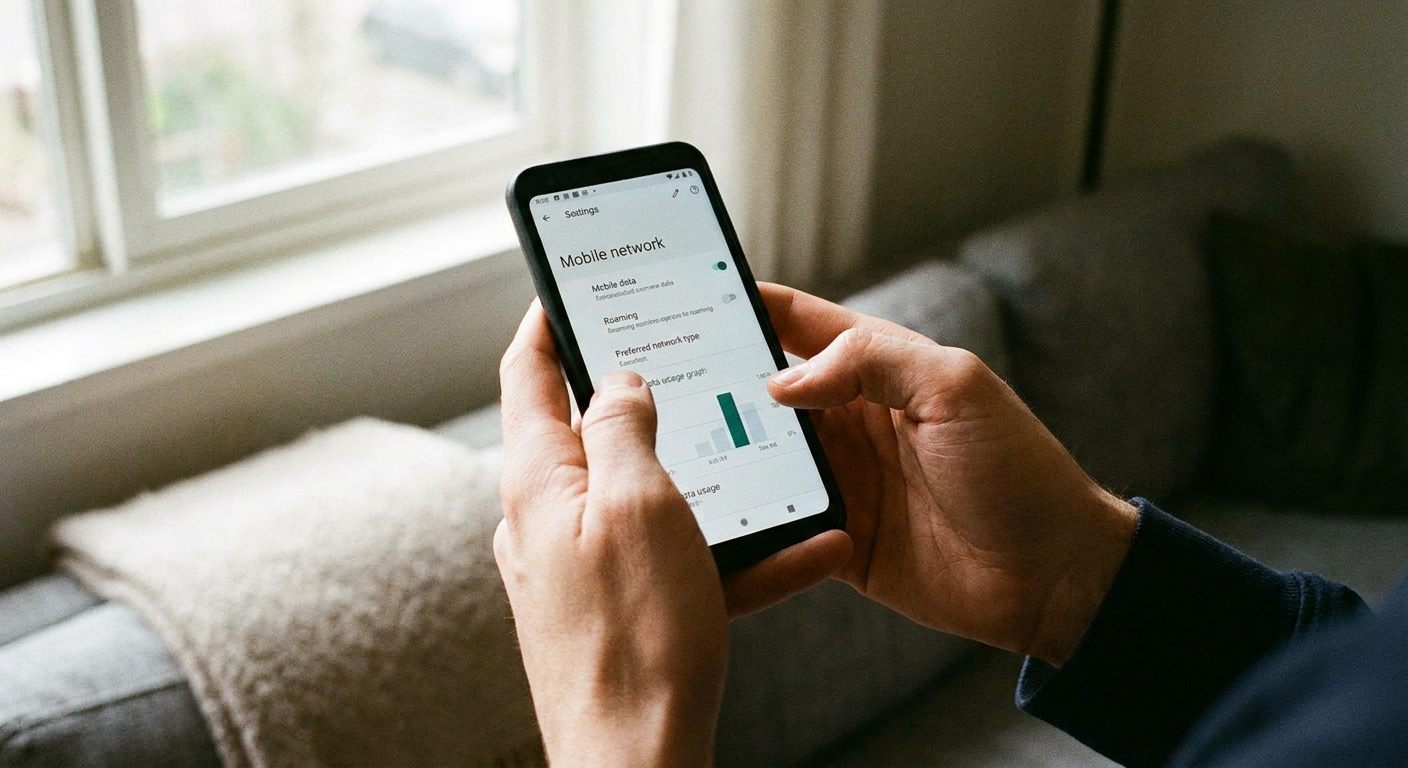
- Android: Settings > Network and internet > Data Saver (path names can vary slightly by phone maker).
This is not perfect, but it helps reduce background “chatter” across apps.
Stop background cellular data for specific apps
This is a phone-level setting that helps when you want messages to wait until you open the app (or until Wi-Fi).
- iPhone: Settings > Cellular > toggle individual apps off, or Settings > General > Background App Refresh.
- Android: Settings > Network and internet > App data usage (or Apps > your app > Mobile data and Wi-Fi) > disable background data.
Be aware: disabling background data can delay message delivery and call notifications. That is the tradeoff.
Make photos cheaper to send
- Send fewer “live” photos and short videos when you are on cellular.
- When possible, choose Standard quality instead of HD.
- If an app has an option to send “as file/document,” treat that as a Wi-Fi move unless you truly need original quality.
Keep backups on Wi-Fi only
If your app offers cloud backups, set them to run on Wi-Fi only. Also remember that restoring a backup on cellular can be massive, especially if it includes years of images.
If you only text, how much data?
If you are truly doing text-only chats, a small data plan can work. In most cases, even heavy text chatting comes out to tens of MB per month, not hundreds. (The “extras” that nudge it up are things like link previews, reaction animations, and the app syncing in the background.)
What changes the math is:
- Group chats with lots of photos and videos
- Sending and receiving voice notes
- Regular video calls
- Auto-download enabled
If your plan is tight, my practical approach is simple: treat video calls as a Wi-Fi activity unless it is an emergency.
And if you are traveling, remember that app-based messaging can dodge international SMS charges, but it still uses mobile data. If you are roaming without a bundle, that data can get expensive fast.
How to measure your own usage
If you want to stop guessing, do this once and you will know exactly which app is eating your plan.
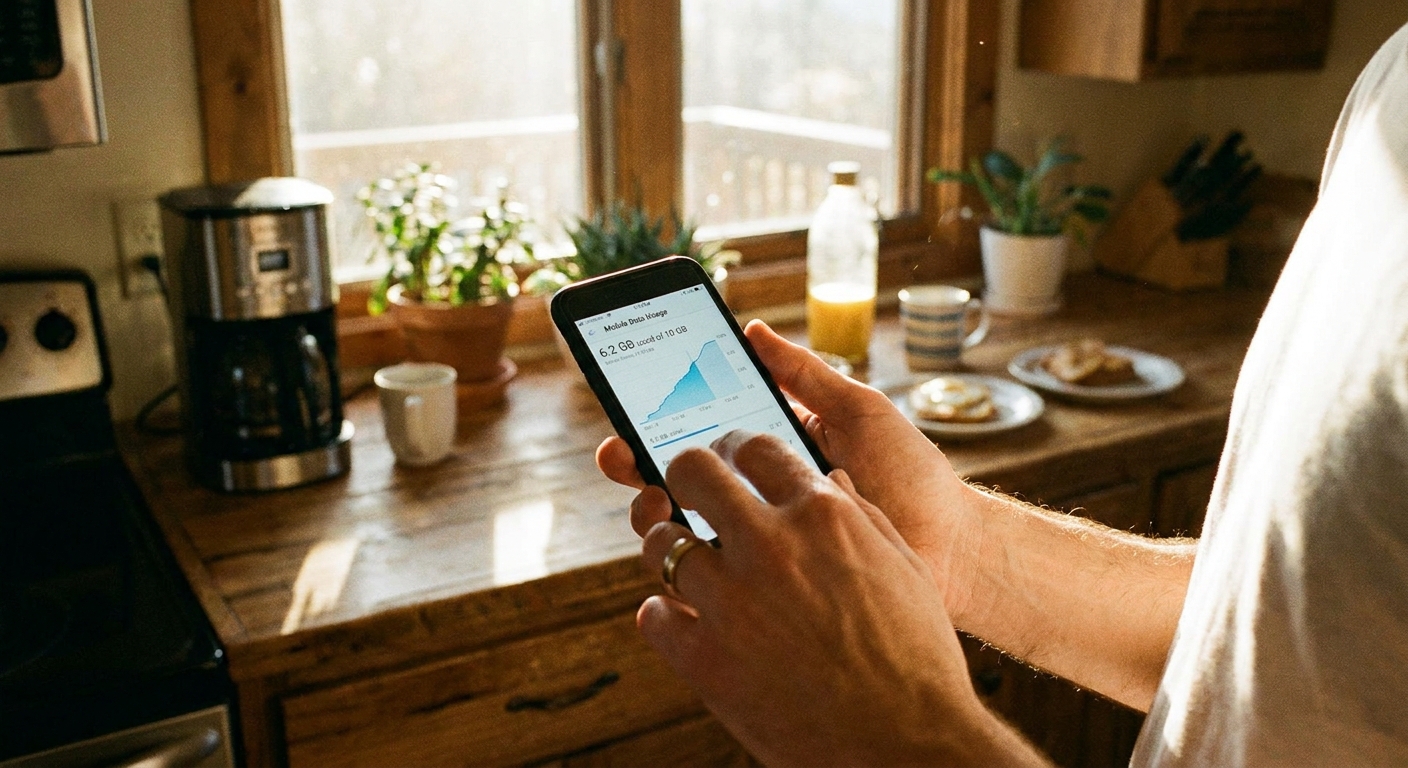
- Reset your phone’s cellular data stats at the start of your billing cycle (or on a random day if you just want a 7-day test).
- Check per-app usage to see which messenger is climbing, and whether it is foreground or background use.
- Repeat after you change settings so you can see what actually worked.
- iPhone: Settings > Cellular. Scroll to see data by app. You can also scroll down and tap Reset Statistics at the bottom (do this right when your billing cycle starts so it stays meaningful).
- Android: Settings > Network and internet > Internet or SIMs > App data usage (wording varies). Many Android phones also let you set a data warning and data limit.
A simple routine to stay under cap
- Check your phone’s data stats weekly (not just at the end of the month). Look at which app is climbing.
- Disable auto-download on cellular in every messaging app you use.
- Set video calling expectations with family. “Call me on Wi-Fi tonight” saves money and stress.
- Download big chat media on Wi-Fi when you are home, then scroll and save what you need.
- Use SMS as a fallback when data is gone, but be mindful of carrier texting rates if you are international.
If you are looking at switching plans because your bill keeps spiking, this can help you catch hidden fees and patterns before you jump: Audit Your Phone Bill Before Switching. And if you are exploring budget-friendly ways to text overall, start here: Guide to Free Texting.
FAQ
Do free texting apps use data on Wi-Fi?
Yes, they still use data, but it comes from your Wi-Fi connection instead of your mobile plan. If your home internet is capped, media-heavy chats can matter there too, but most people only feel the pain on cellular.
Which uses more data: SMS or app messaging?
SMS does not use mobile data, but it can cost money depending on your plan. App-based messages use data, but they can be essentially free on Wi-Fi and inexpensive on cellular if you stick to text and control media.
Are voice notes cheaper than a phone call?
Often yes, especially compared to a video call. Voice notes are usually pretty small, but long voice notes in busy chats can still add up over a month.
Why is my messaging app using data when I barely chat?
Common reasons include background refresh, auto-download, backups, syncing across devices, or link previews. Turning off background data and restricting auto-download usually fixes it.
What is the safest way to avoid overage fees?
Use Wi-Fi whenever you can, disable cellular auto-download, and keep video calling to Wi-Fi. If you regularly text internationally, you may also like: Send Free International Texts Without Carrier Fees.