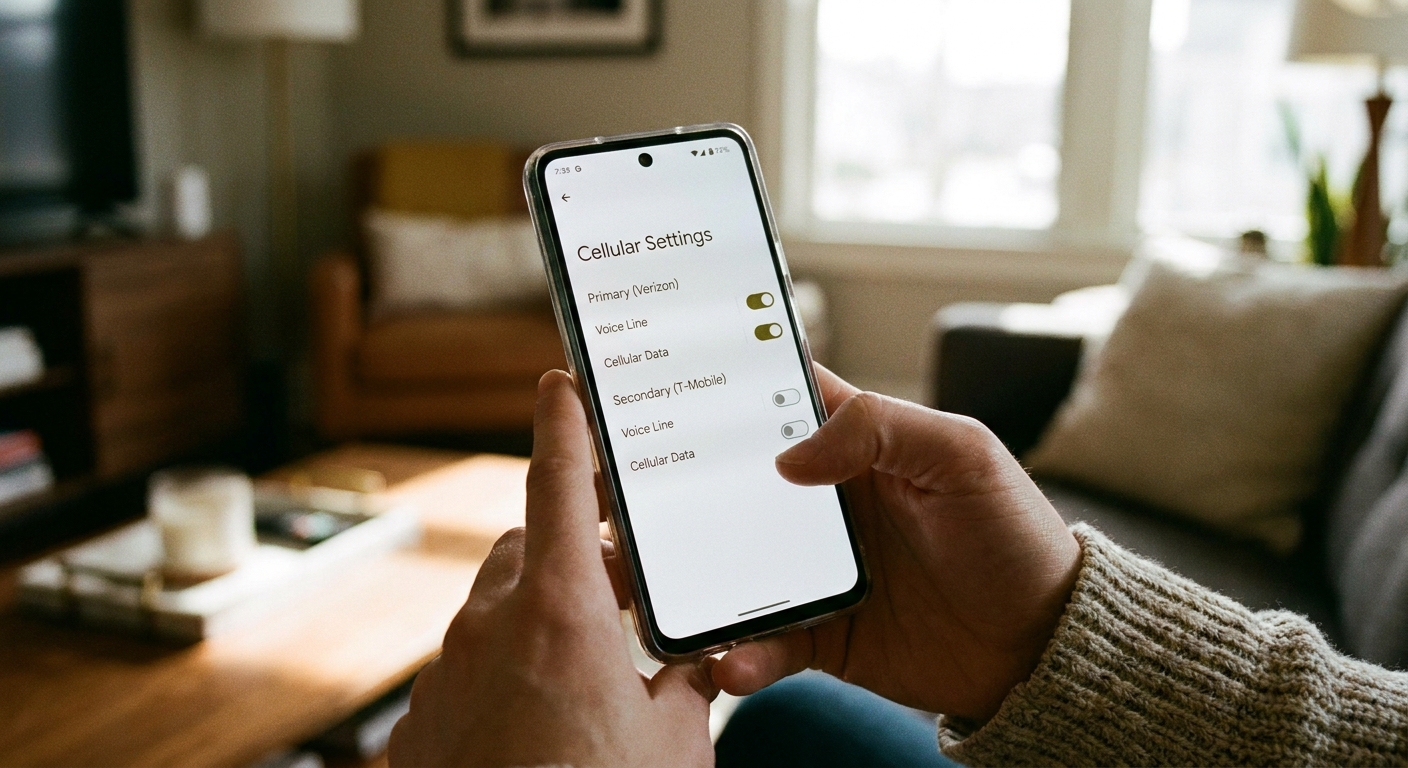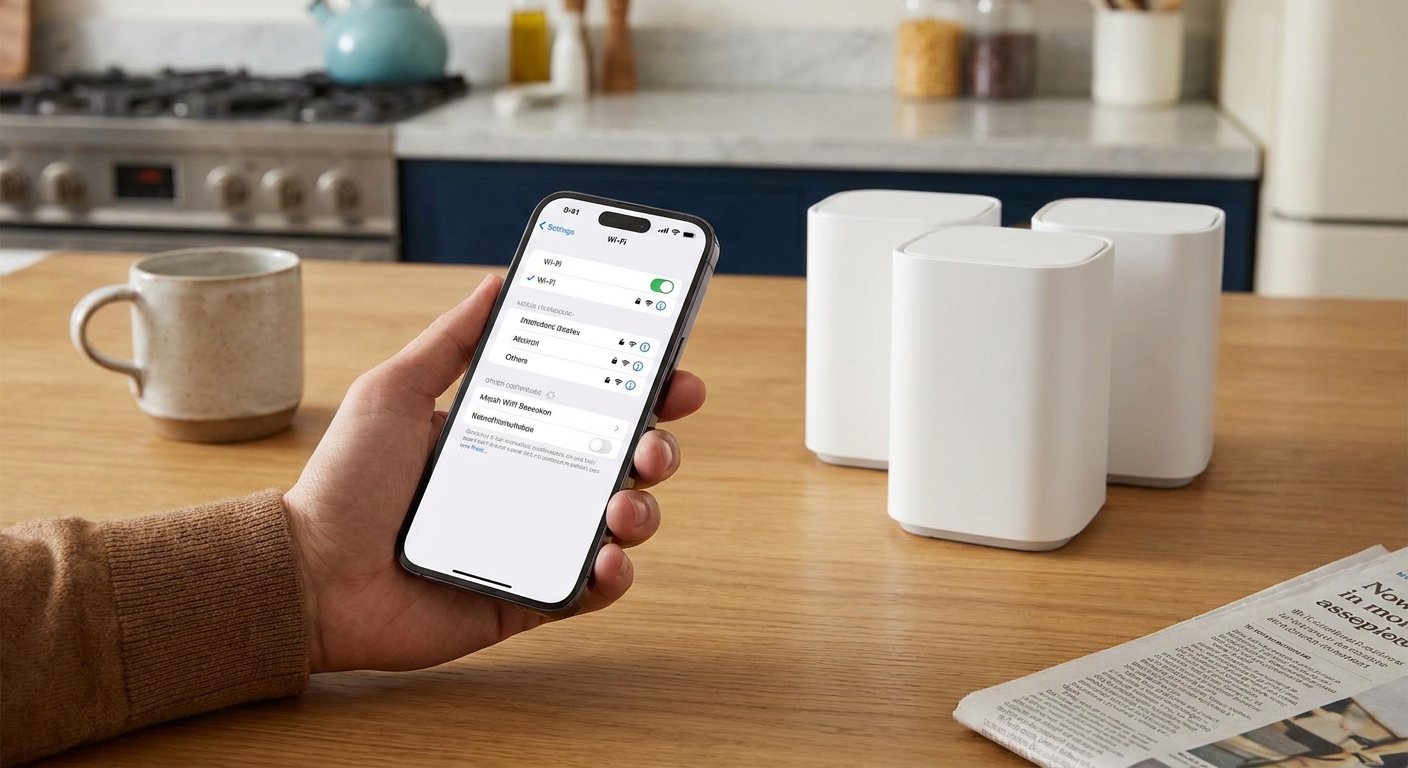

My family group chat is basically a part-time job, and I learned the hard way that it is not the messages that wreck a capped data plan. It is all the quiet stuff happening behind the scenes: photo backups, app refreshes, autoplay videos, “helpful” cloud sync, and updates that start the second you step off Wi-Fi.
This guide is the no-drama way to clamp down on background data so your phone stops spending your monthly gigabytes while it sits in your pocket.
First, a quick reality check
Android and iPhone handle background data a little differently, and both have a few gotchas depending on model, carrier, and OS version.
- Android: Many Android phones let you set a data warning and a data limit, plus restrict background data per app. On some devices, the “limit” acts like a real kill switch that turns mobile data off when you hit the number. On others, it is hidden, disabled, or applies only to one SIM.
- iPhone (iOS): iOS does not offer a universal OS-level hard cap that shuts cellular off at 5GB or 10GB. What you can do is disable cellular data for specific apps, turn off Background App Refresh, and tighten down the biggest background hogs (Photos, iCloud Drive, App Store, streaming apps).
If you want an extra layer beyond phone settings, pairing this with a plan checkup helps. I keep a running list of small charges and plan add-ons using the same approach I describe in Decode and Cut the Fees on Your Cell Phone Bill.
Android: set a warning and limit
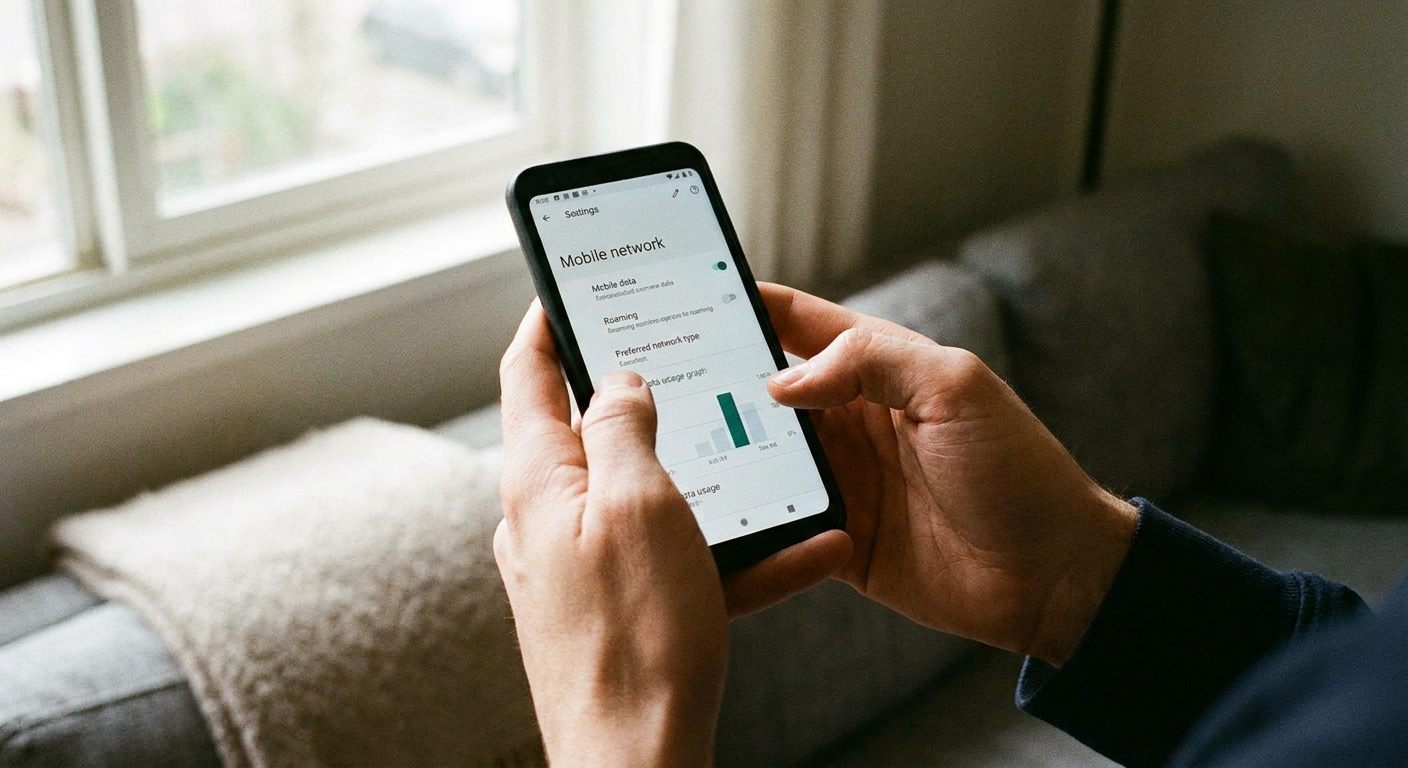
Android menus vary by brand, but you are usually looking for Network & internet, Connections, SIMs, Mobile network, or Data usage.
1) Turn on a data warning
Here are two common paths. If neither matches your phone, search Settings for data warning or data limit.
- Pixel and similar: Settings → Network & internet → SIMs → (select SIM) → App data usage or Data warning & limit
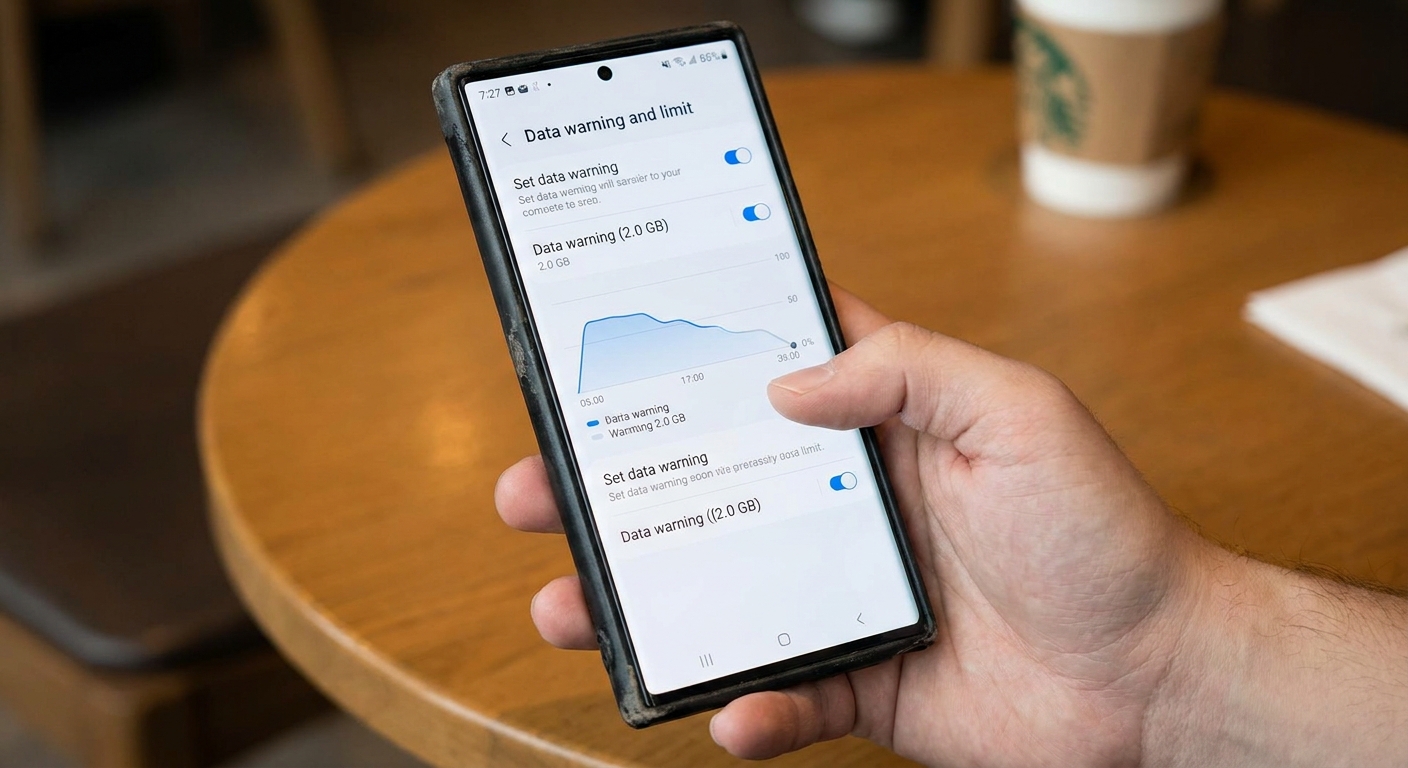
- Samsung and similar: Settings → Connections → Data usage → Mobile data usage → (menu or gear) Data warning & limit
Enable Data warning and set the warning a bit below your plan cap.
My rule of thumb: If your plan is 10GB, set the warning at 8.5GB or 9GB. That gives you time to react before the billing cycle ends.
2) Turn on a data limit (if your phone offers it)
- In the same Data warning and limit area, look for Set data limit.
- Enter your plan cap (or slightly under if your carrier’s meter tends to run “hot”).
- Confirm the billing cycle start date matches your plan’s reset day.
On many Android phones, hitting the limit shuts off mobile data automatically. On some models and carrier builds, the limit is not available, does not behave like a true shutoff, or only applies to one SIM on dual-SIM phones. Either way, the per-app controls below are where the real savings come from.
Also: your carrier’s meter is still the one that determines billing. Use your phone’s limit as protection, not as a legal contract.
Android: restrict background data per app
Even with a limit set, you want to stop background drain so you do not burn through data in week one.
Option A: block background data for the worst offenders
- Settings → Network & internet (or Connections).
- Tap App data usage or go to Data usage → Mobile data usage.
- Select an app that is using too much.
- Turn off Background data or enable Restrict background data (wording varies).
What changes: The app can use data when you open it, but it cannot quietly sync nonstop when you are not looking.
Option B: use Data Saver mode
This is the one switch I flip for anyone on a tight cap.
- Settings → Network & internet.
- Tap Data Saver.
- Turn Data Saver on.
- Optional but useful: set Unrestricted data for only essential apps (maps, a rideshare app, maybe your bank).
Data Saver reduces background syncing and, on many devices, also nudges apps to use less data overall.
Option C: stop an app from using mobile data entirely (when available)
Some Android skins include per-app toggles like Mobile data, Wi-Fi data, Allow network access, or similar under the app’s info screen. If you have it, that is the strictest setting.
If you do not see those toggles, do not worry. Use Data Saver plus background restriction. Those two settings cover most of the “why is my data disappearing” problems.
iPhone: strict background data setup
On iPhone, the winning strategy is: (1) reduce background work, and (2) make sure only the apps you truly need can touch cellular data.
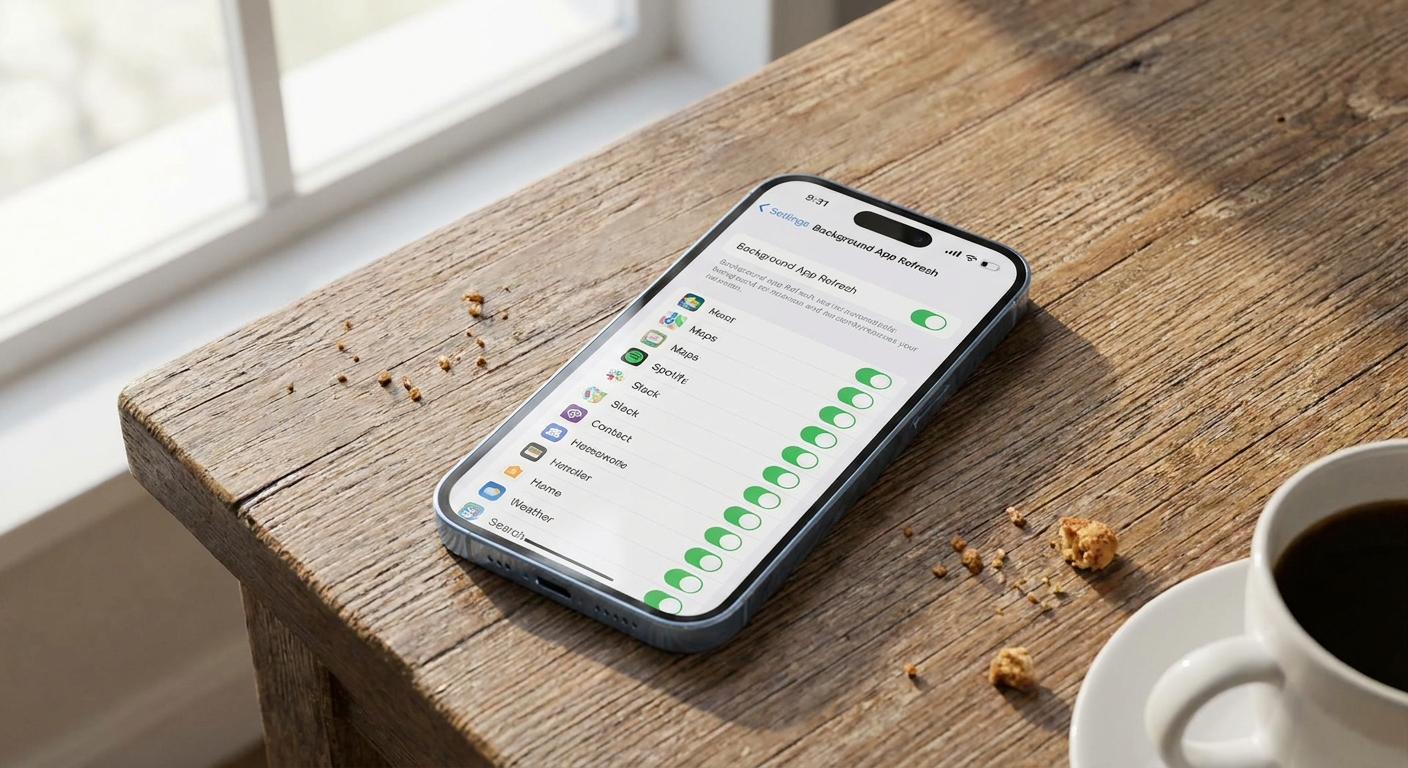
1) Turn off Background App Refresh (or limit it)
- Open Settings.
- Tap General → Background App Refresh.
- Choose Off for the strictest control, or choose Wi-Fi to prevent cellular background refresh.
What you lose: Some apps may not update until you open them. For most people on capped plans, that trade is worth it.
2) Disable cellular data for specific apps
- Settings → Cellular (or Mobile Service depending on region).
- Scroll down to the list of apps.
- Toggle off cellular access for anything that should not be using mobile data at all.
Apps I often block on capped plans: streaming video, podcast apps (unless you manually download on Wi-Fi), cloud photo backup apps, app store downloads, and most social apps.
3) Set App Store downloads to Wi-Fi only
- Go to Settings → App Store (or Settings → Apps → App Store on newer iOS versions).
- Under Cellular Data, turn off Automatic Downloads.
- If you see App Downloads, choose Always Ask or Ask If Over 200 MB (wording varies).
4) Stop iCloud and Photos from surprising you on cellular
This is the part that frustrates people because Apple’s exact toggles can vary by iOS version and which iCloud features you use. I stick to the levers that are the most consistent.
- Block cellular for third-party backup apps: Settings → Cellular → toggle off anything like Google Photos, OneDrive, Dropbox, or other backup tools you do not want uploading on the go.
- Check iCloud Drive’s cellular toggle (when present): Settings → your name → iCloud → iCloud Drive → turn off Use Cellular Data if you see it.
- Be intentional with Photos on cellular: if you are on a tight cap, avoid triggering big uploads and downloads until you are back on Wi-Fi. In real life, that means: wait to scroll deep into your cloud library, wait to send large video files, and let the “catch up” syncing happen at home.
5) Use Low Data Mode on cellular
- Settings → Cellular → Cellular Data Options.
- Turn on Low Data Mode.
Low Data Mode reduces background activity and can cut down automatic updates and sync behavior.
Stop the usual background culprits
These are the settings I check first whenever someone tells me “I barely use my phone and I still hit the cap.”
Cloud photo backups
- Set backups to Wi-Fi only inside the photo app (Google Photos, OneDrive, Dropbox, etc.).
- If the app does not offer Wi-Fi only, disable cellular data for it entirely (Android app controls, or iPhone Settings → Cellular app list).
Streaming apps and autoplay
- Turn off autoplay on social and video apps.
- In music apps, disable “download using cellular” and set audio quality to “data saver” if available.
Auto-switching when Wi-Fi is weak
Some phones will quietly use cellular when Wi-Fi is shaky, even though you think you are “on Wi-Fi.”
- iPhone: Settings → Cellular → scroll to the bottom → Wi-Fi Assist → turn it off.
- Android: Look for settings like Adaptive connectivity, Switch to mobile data, or Intelligent Wi-Fi in Network settings and disable the auto-switch feature if you are trying to be strict.
Messaging apps and media downloads
Group chats are often the biggest surprise, especially when people send videos.
- Inside your messaging app, set media downloads to Wi-Fi only (photos, audio, documents, video).
- If you are on a bare-bones plan, keep an eye on MMS and group messaging costs too. Some carriers treat picture messages differently, which I break down in Why Group Chats and Picture Messages Cost Extra on Basic Plans.
Hotspotting and big updates
- Hotspot data counts, and it disappears fast. If you tether a laptop for “just a minute,” check your usage after.
- Keep system updates and app updates on Wi-Fi whenever possible. One OS update can eat a small monthly cap by itself.
Quick strict mode checklist
- Android: Set the billing cycle start date, then set a warning and a data limit if your phone offers it.
- Android: Turn on Data Saver, then whitelist only critical apps.
- iPhone: Background App Refresh → Off (or Wi-Fi only).
- iPhone: Low Data Mode → On for cellular.
- Both: Set photo backups to Wi-Fi only (or block cellular for the backup app).
- Both: Turn off autoplay and high-quality streaming on cellular.
- iPhone: Turn off Wi-Fi Assist.
- Both: Update apps and system software on Wi-Fi, not on mobile data.
Check if it worked
I like settings changes you can verify. Here are two simple ways to confirm you actually stopped the leak.
Android: check per-app usage after 24 hours
Go to Settings → Network & internet (or Connections) → Data usage → Mobile data usage (or App data usage). Look for any app still climbing even when you are not opening it. That is your next target for background restriction.
iPhone: reset Current Period at the start of your cycle
On iPhone, go to Settings → Cellular and scroll all the way down to Reset Statistics. I do this on the day my plan resets, then I can see whether my “strict mode” changes made a real dent over the next week.
Troubleshooting
You are “on Wi-Fi” but cellular still rises
This is often Wi-Fi Assist (iPhone) or an auto-switch feature (Android). Disable it, then test: stream something for 30 seconds on Wi-Fi and see whether cellular usage increases.
System services are using data
On iPhone, scroll to the bottom of Settings → Cellular to see totals for System Services. If it is high, Low Data Mode can help, and tightening app cellular access can help indirectly by reducing background activity that triggers system tasks. Common culprits include Wi-Fi Assist, iCloud activity, and updates.
A single app spikes data overnight
That is usually cloud sync, media backup, or an app stuck in a retry loop. On Android, restrict that app’s background data. On iPhone, disable cellular for that app completely and see if the spike stops.
Your carrier meter does not match your phone
It happens. Carriers can count data differently than your device report. If you are on a tight cap, set Android’s limit slightly under your plan, and on iPhone use the cellular app toggles aggressively. If your bill seems off by a lot, run through a full review like I outline in Audit Your Phone Bill Before Switching.
Stretch a small plan further
Once you have background data under control, you can stretch a small plan a lot further by leaning on Wi-Fi messaging. I keep my own setups simple: reliable Wi-Fi, a messaging app that behaves, and a plan that does not punish me for going light.
- For a deeper rundown of low-data communication options, start with Guide: Phone and Bills.
- If you rely on Wi-Fi for messaging, see Best Cheap MVNO Plans for Wi-Fi Texting.
- And if you want to estimate what messaging actually costs in data, I have a practical breakdown in How Much Data Free Texting Apps Use (and How to Cut It).
FAQ
Will turning off background data break notifications?
Usually, no. Push notifications, especially on iPhone, are designed to be lightweight. What you are mainly stopping is large background syncing and refresh behavior. Some apps may feel less instant until you open them.
Should I leave mobile data off all the time?
If your plan is extremely tight, that can work, but it is inconvenient for maps, ride shares, banking codes, and random life stuff. A better approach is to keep mobile data on and block the big background offenders so the phone behaves like it is on a leash.
What is the strictest setup on iPhone?
Turn off Background App Refresh, enable Low Data Mode, disable Wi-Fi Assist, then go through Settings → Cellular and turn off cellular access for any nonessential app. That is as close as iOS gets to a hard cap.