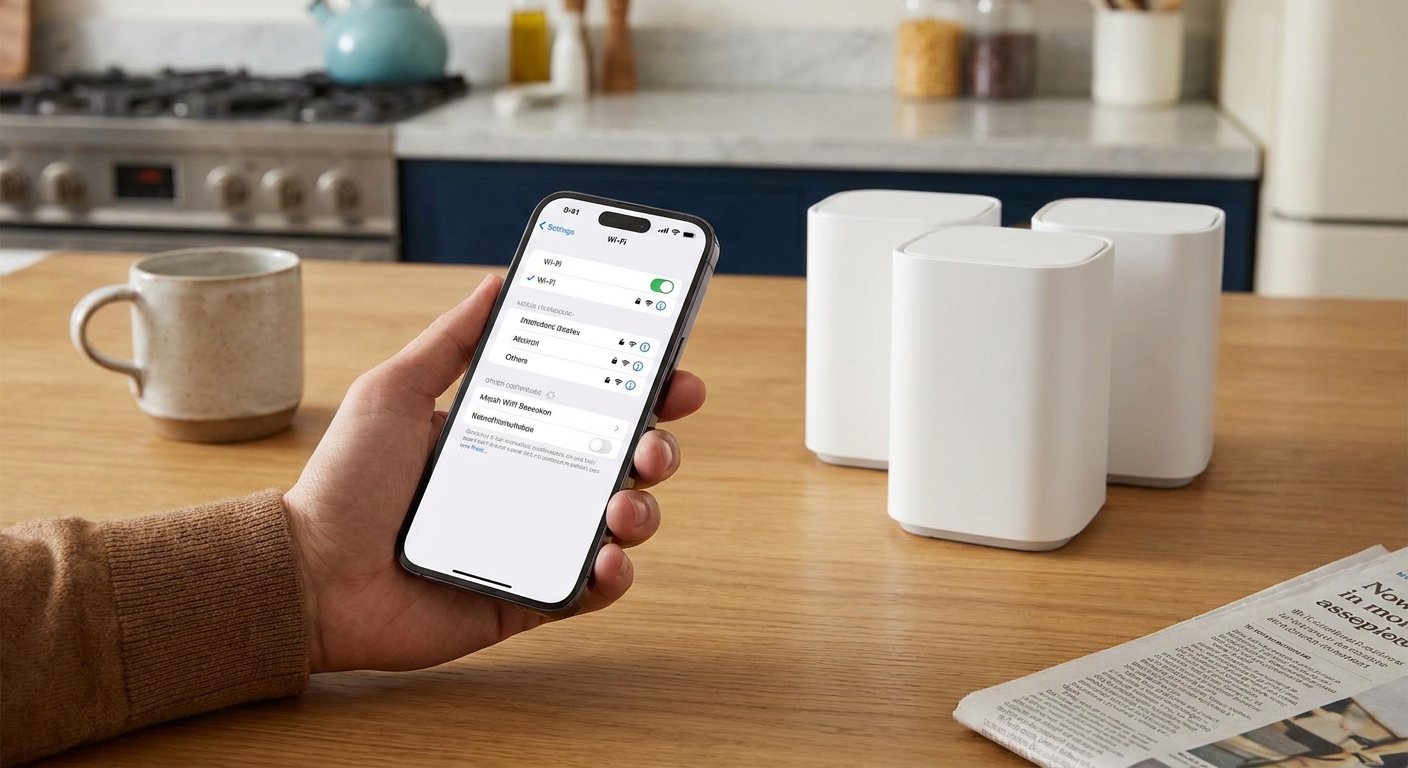

I grew up with family scattered all over, which meant one thing: the minute someone discovered “just add the watch line,” our phone bill quietly inflated. The good news is you can do a lot of smartwatch messaging without paying your carrier an extra monthly fee. The trick is simple: keep your watch paired to your phone and let it ride on Bluetooth and Wi-Fi instead of its own cellular plan.
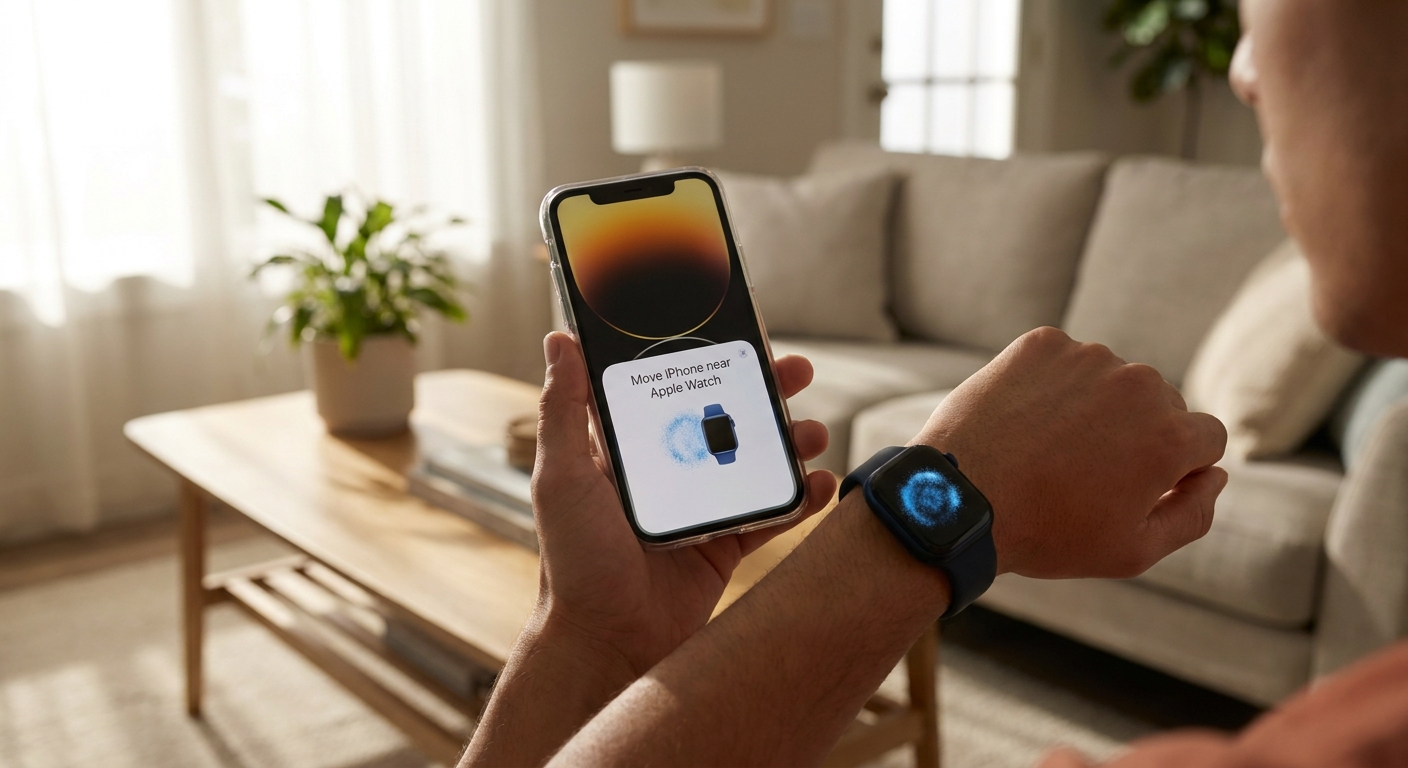
This guide walks through Apple Watch and Galaxy Watch setups, what works without a carrier line, and the gotchas that make people accidentally pay for cellular when they do not need it.
Quick reality check
When your watch does not have an active cellular plan, it still messages in two common ways:
- Bluetooth to your phone (best for battery and reliability)
- Wi-Fi (the watch joins a known network, typically one you have already used from the paired phone)
That means you can usually:
- Send and receive messages when your phone is nearby (Bluetooth range)
- Send and receive many internet-based messages when the watch is on Wi-Fi, as long as your phone is powered on and reachable and your apps support it
- Use app-based messaging often via notifications and quick replies; full standalone watch apps depend on platform, model, and what the app supports right now
You usually cannot:
- Use your watch as a totally independent phone number for regular texting without some kind of service behind it
- Reliably send carrier SMS when your phone is off, dead, or left behind, unless you have a cellular plan on the watch or a very specific remote-sync feature that your devices support
If your main goal is “text from the watch while my phone is somewhere else in the house,” Bluetooth plus Wi-Fi syncing is perfect. If your goal is “leave the phone at home and still text normally anywhere,” that is when carriers push the watch line.
Models matter
This is where a lot of confusion (and unnecessary monthly fees) starts:
- Apple Watch: “GPS” and “GPS + Cellular” describe the hardware. You only pay extra if you actually activate a cellular plan.
- Galaxy Watch: “Bluetooth” and “LTE” describe the hardware. An LTE model can still be used like a Bluetooth model if you simply do not activate LTE service.
Apple Watch: message over Bluetooth and Wi-Fi
Apple Watch messaging without a carrier fee works best when you use it the way Apple designed it: the watch is an extension of your iPhone.
Step 1: Confirm you are not paying for Watch cellular
- On your iPhone, open the Watch app.
- Tap Cellular.
- If you see an active plan, remove it or do not set it up. If you never set up cellular, you are typically fine.
Carriers can add a wearable line during upgrades, promos, or checkout flows. If you want to be extra sure, do a quick scan of your statement for add-ons like NumberShare, Digits, or NumberSync. My workflow is to do a periodic bill review using the same approach in Audit Your Phone Bill Before Switching.
Step 2: Turn on the two settings that make syncing work
- On the iPhone: go to Settings and ensure Wi-Fi and Bluetooth are on.
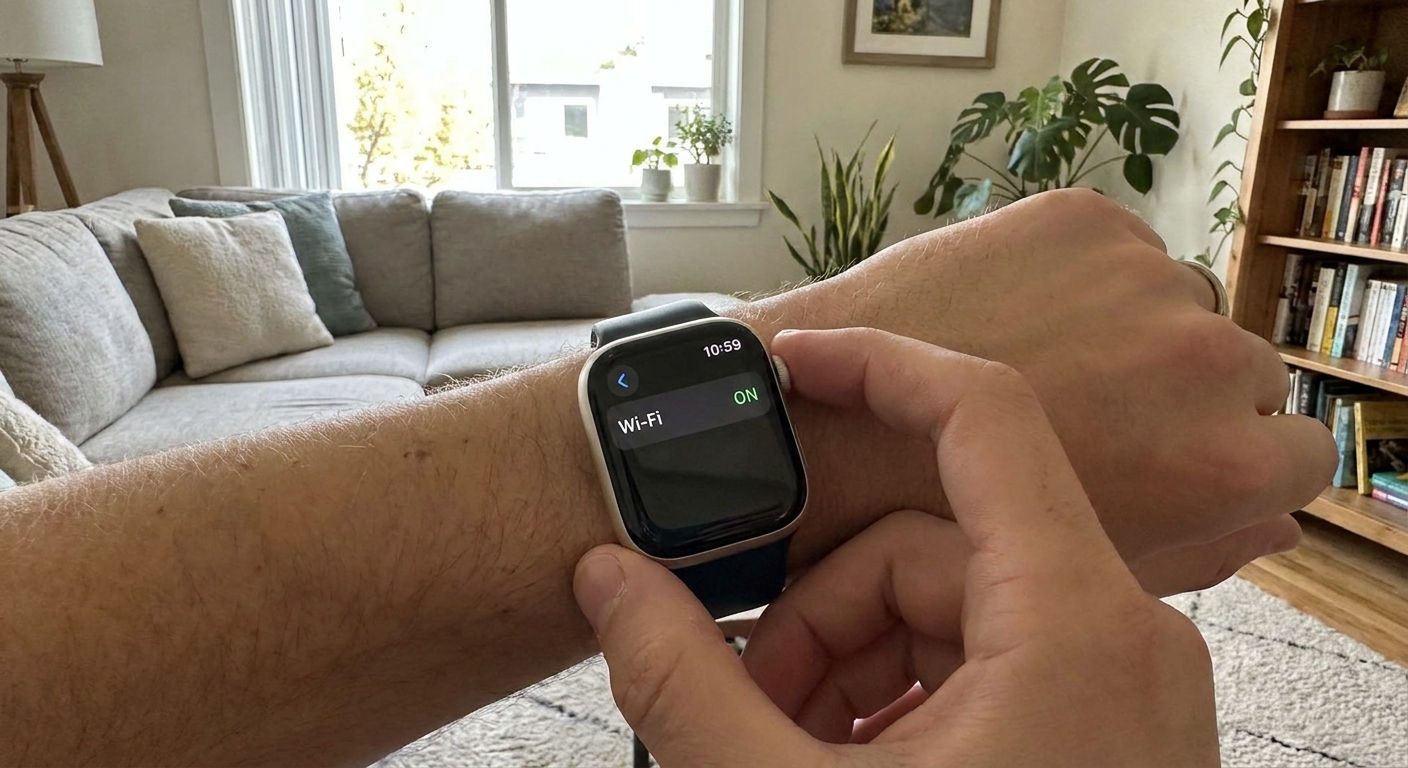
- On the Apple Watch: open Settings and ensure Wi-Fi and Bluetooth are on.
In real life, I leave Bluetooth on permanently. It is the cheapest, most stable pipeline between phone and watch.
Step 3: Check the Apple basics that actually control Messages on the watch
There is not a “Text Message Forwarding to Apple Watch” toggle like you may see for iPad or Mac. For Apple Watch, SMS and iMessage ride through the iPhone connection when the watch is paired and set up correctly. Here is what to check instead:
- On your iPhone, go to Settings > Apps > Messages and make sure iMessage is on (if you use it).
- In the same menu, open Send & Receive and confirm you can be reached at your phone number and any emails you expect.
- On your iPhone, open the Watch app, tap Notifications, then make sure Messages is allowed to mirror the iPhone.
- Make sure the watch is unlocked and still paired (a passcode or pairing issue can silently block message sync).
With this in place, the watch can typically send iMessage directly when it has internet, and it can send SMS and MMS by relaying through the iPhone when the iPhone is online and reachable.
Step 4: Enable Wi-Fi calling on the iPhone (optional)
This can help with calling and can improve “my phone is reachable” behavior when your carrier signal is weak. Follow the steps in Enable Wi‑Fi Calling and Texting on Your Phone.
Step 5: Test it the simple way
Here is my quick test to see whether the watch will be useful without a cellular plan:
- Leave the iPhone on at home connected to Wi-Fi.
- Walk out of Bluetooth range and let the watch join Wi-Fi.
- Send yourself a message from another device or ask a friend to text you.
- Reply from the watch.
If it works, you are in the sweet spot: watch messaging without paying for its own line.
Galaxy Watch: message over Bluetooth and Wi-Fi
Galaxy Watch models can be Bluetooth-only or LTE capable. Even an LTE capable model can be used without activating LTE service. You want the watch paired to your phone and using Wi-Fi when needed.
Step 1: Make sure you are not using an LTE plan
- On your phone, open the Galaxy Wearable app.
- Look for Mobile plans or Cellular plan settings (wording varies by model and region).
- If there is a plan active, remove it. If there is no plan, do not add one.
If you are unsure whether your carrier is charging you, check your bill for an extra wearable line. If you want a systematic way to catch add-ons like this, I use the same checklist style outlined in Decode and Cut the Fees on Your Cell Phone Bill.
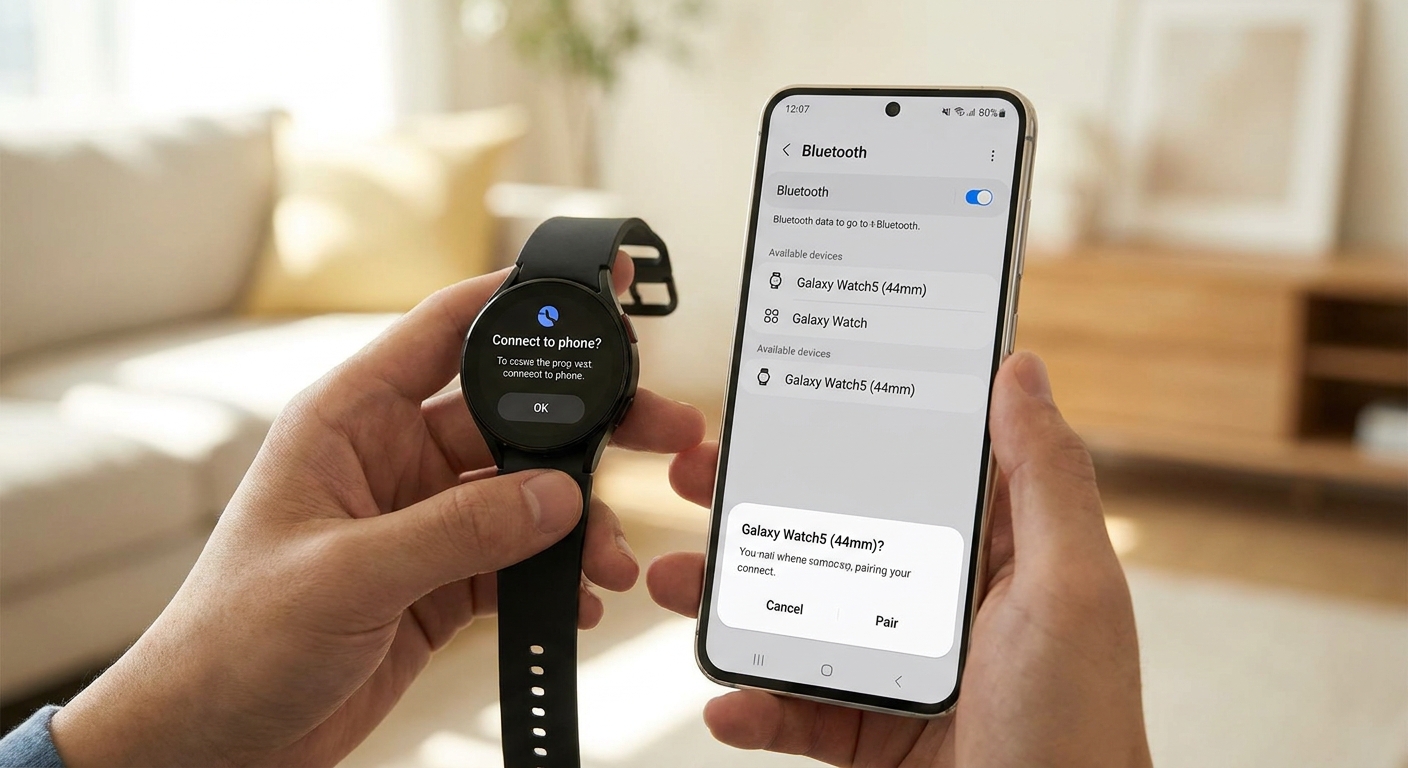
Step 2: Pair the watch properly
- Turn on Bluetooth on your Android phone.
- Open Galaxy Wearable and connect the watch.
- During setup, allow permissions for notifications, contacts, and SMS when prompted. These permissions are what let you reply from the watch.
Step 3: Enable Wi-Fi on the watch
- On the watch, open Settings.
- Go to Connections.
- Turn on Wi‑Fi and set it to Auto if that option exists.
Auto Wi-Fi is the set-it-and-forget-it option. The watch uses Bluetooth when your phone is near and flips to Wi-Fi when Bluetooth is not available.
Step 4: Pick the messaging method that matches your setup
Galaxy Watch messaging without LTE is more dependent on phone model, watch model, and your messaging apps than most people expect. In practice, you usually get one (or more) of these:
- SMS and RCS tied to the phone when the watch is connected to the phone (most reliable over Bluetooth; over Wi-Fi it varies by device features and how your Messages app syncs)
- App messaging on the watch for apps that offer a real Wear OS watch app (availability changes over time)
- Notification replies for almost everything else (this is where apps like Signal and Telegram often land on watches, depending on your setup and notification settings)
Step 5: Test it
- Leave your phone powered on and connected to Wi-Fi.
- Move the watch out of Bluetooth range.
- Confirm the watch is on Wi-Fi.
- Send a message to your number and try replying from the watch.
Edge cases to know
This guide assumes you have a normal paired setup: Apple Watch paired to an iPhone, or Galaxy Watch paired to an Android phone. A few common situations push people toward a paid watch plan:
- Apple Watch Family Setup: If you are setting up an Apple Watch for a kid or someone without their own iPhone and you want it to behave independently, cellular is often part of the deal.
- Captive portal Wi-Fi: Hotel and coffee shop Wi-Fi that requires a browser login is a frequent failure point for watches. Even when your phone can sign in, the watch may not join cleanly.
- “Phone is off” scenarios: Without a watch plan, you are generally depending on the phone being powered on and connected for SMS relay and consistent syncing.
Avoid the usual watch line traps
Trap 1: Assuming LTE hardware means you must activate LTE
You do not. LTE models can be used like Bluetooth-only models if you simply do not activate the plan. The watch will still pair and use Wi-Fi and Bluetooth like normal.
Trap 2: Paying monthly just to get messages “sometimes away from the phone”
Before you pay, ask yourself how often you truly leave the phone behind.
- If you mainly want to text around the house, at the office, or on campus, Bluetooth plus Wi‑Fi is usually enough.
- If you are a runner who wants to leave the phone at home and still send standard SMS anywhere, that is where a watch line can be worth it, but only if you will truly use it.
Trap 3: Overpaying for the wrong thing
If messaging is your priority, you often save more by optimizing the phone plan itself. These two guides are good next reads:
Battery and reliability tips
- Prefer Bluetooth when possible. It is typically less power-hungry than Wi-Fi.
- Use known Wi-Fi networks. Watches behave best on networks your phone has already joined and saved. Captive portals are the exception that breaks the rule.
- Keep background restrictions reasonable. If you aggressively restrict background data on your phone, watch relays and notifications can get flaky. If you are trying to save data without breaking messaging, start with Set Strict Background Data Limits on iOS and Android.
- Update both devices. Watch messaging issues are often fixed by watchOS or Wear OS updates.
Troubleshooting messages
1) Check the basics
- Is Bluetooth on?
- Is Wi‑Fi on?
- Is Airplane Mode off?
- Is your phone turned on and connected to the internet?
- Is the watch still paired and unlocked?
2) Nudge the connection back to life
- Toggle Bluetooth off and on (phone and watch).
- Toggle Wi‑Fi off and on (watch).
- Restart the watch.
- Restart the phone if it is still stuck.
3) Confirm Messages and notifications are allowed
On Apple Watch, check iPhone Messages settings (iMessage and Send & Receive) and the Watch app notification mirroring for Messages. On Galaxy Watch, confirm permissions in Galaxy Wearable and in Android notification settings.
4) App messages not delivering
If it is an app like WhatsApp, Signal, Telegram, or another free texting tool, the culprit is usually notification permissions, battery optimization, or background data restrictions. I keep a dedicated checklist for this in Why Your Free Texting App Is not Delivering Messages and How to Fix It.
FAQ
Can I text from my Apple Watch without a cellular plan?
Yes. If your Apple Watch is paired to your iPhone, it can send iMessages when it has internet access and it can typically send SMS and MMS by relaying through the iPhone when the iPhone is powered on and reachable.
Can I text from my Galaxy Watch without paying for LTE service?
Yes. Pair it to your Android phone via Bluetooth and enable Wi‑Fi on the watch. You can often reply to SMS and app messages through the phone connection and notifications, but the details depend on your model, Messages app, and which apps support a watch experience.
Do I need Wi-Fi calling for watch messaging?
Not always, but it can improve reliability when cellular reception is weak. If you are trying to keep everything running on Wi‑Fi as much as possible, start with Enable Wi‑Fi Calling and Texting on Your Phone.
When is paying for a watch line worth it?
If you regularly leave your phone behind and still need traditional SMS, calls, and alerts anywhere with cellular coverage, the watch line can earn its keep. If your phone is usually with you, the extra fee is often just bill bloat.