

I grew up in a big, scattered family, so when a “free” texting app starts acting up, it feels personal. You send a message, it spins forever. Or it says “sent” but your cousin never gets it. Or worse, your 2FA code shows up three hours late when you already rage-quit the login screen.
The good news is that most delivery problems come down to a handful of fixes: network, battery or data restrictions, permissions, or account and number issues. Below is the exact troubleshooting order I use, because it saves time and avoids settings whack-a-mole.
First, name the failure
Different symptoms point to different causes. Before you change anything, match your issue to the closest description.
- Delayed messages: They eventually arrive, but minutes or hours late.
- Failed delivery: You see an error like “Not sent,” “Failed,” “Undelivered,” or a red exclamation mark.
- Stuck on sending: Spinning wheel, “Sending…” forever, or it sends only after you open the app.
- One person cannot receive your texts: Everyone else is fine.
- Only pictures or group messages fail: Plain text works.
- It works on Wi-Fi but not mobile data, or vice versa: Usually a permission, VPN, or data setting.
The 60-second quick fix
- Toggle Airplane Mode on for 10 seconds, then off.
- Switch networks: move from Wi-Fi to cellular data, or cellular to Wi-Fi.
- Force close the app and reopen it.
- Restart your phone.
If messages immediately start flowing after a restart, that is a clue you are dealing with a background restriction or a flaky network handoff, not a “broken account.”
Fix #1: Your connection is lying
Wi-Fi says connected, but data is not moving
A weak Wi-Fi connection can keep your phone “connected” while silently failing to pass data. Two quick tests:
- Open a website you have not visited today (to avoid a cached page).
- Turn off Wi-Fi and try sending over cellular data.
If the app works on cellular but not Wi-Fi, reboot your router, forget and rejoin the Wi-Fi network, or try a different Wi-Fi network.
Public and office Wi-Fi can block or throttle messaging
Some networks block or throttle certain messaging and VoIP traffic using firewall rules, filtering, or captive portal weirdness. If your app only fails at work, school, or a hotel, that is usually why.
- Try switching to cellular data.
- If you rely on Wi-Fi, try a different network or use a trusted hotspot.
If you use public Wi-Fi often, see my guide to staying connected safely without paying extra: Free public Wi-Fi messaging without a premium VPN.
Wi-Fi Calling can help if carrier texting is the issue
If the problem is actually your carrier layer (SMS, RCS, or calls) failing in a low-signal spot, enabling Wi-Fi Calling and Wi-Fi texting can stabilize carrier messaging. It will not magically fix a third-party app, but it can clear up “my number is acting haunted” moments when you are mixing app texting with regular texting.
Step-by-step here: Enable Wi-Fi calling and texting on your phone.
Fix #2: Background limits are choking the app
This is the most common reason people tell me “it only sends when I open the app.” Phones are aggressive about saving battery and data, and free texting apps get punished because they are not “system” messaging.
On Android: remove battery optimization for the app
- Settings → Apps → (your texting app) → Battery
- Select Unrestricted or turn off Optimize battery usage for that app
Also check:
- Settings → Battery → Power saving mode (turn off temporarily to test)
- Settings → Apps → (your app) → Mobile data and Wi-Fi (allow background data)
On iPhone: check Low Power Mode and Background App Refresh
- Settings → Battery → Low Power Mode (turn off to test)
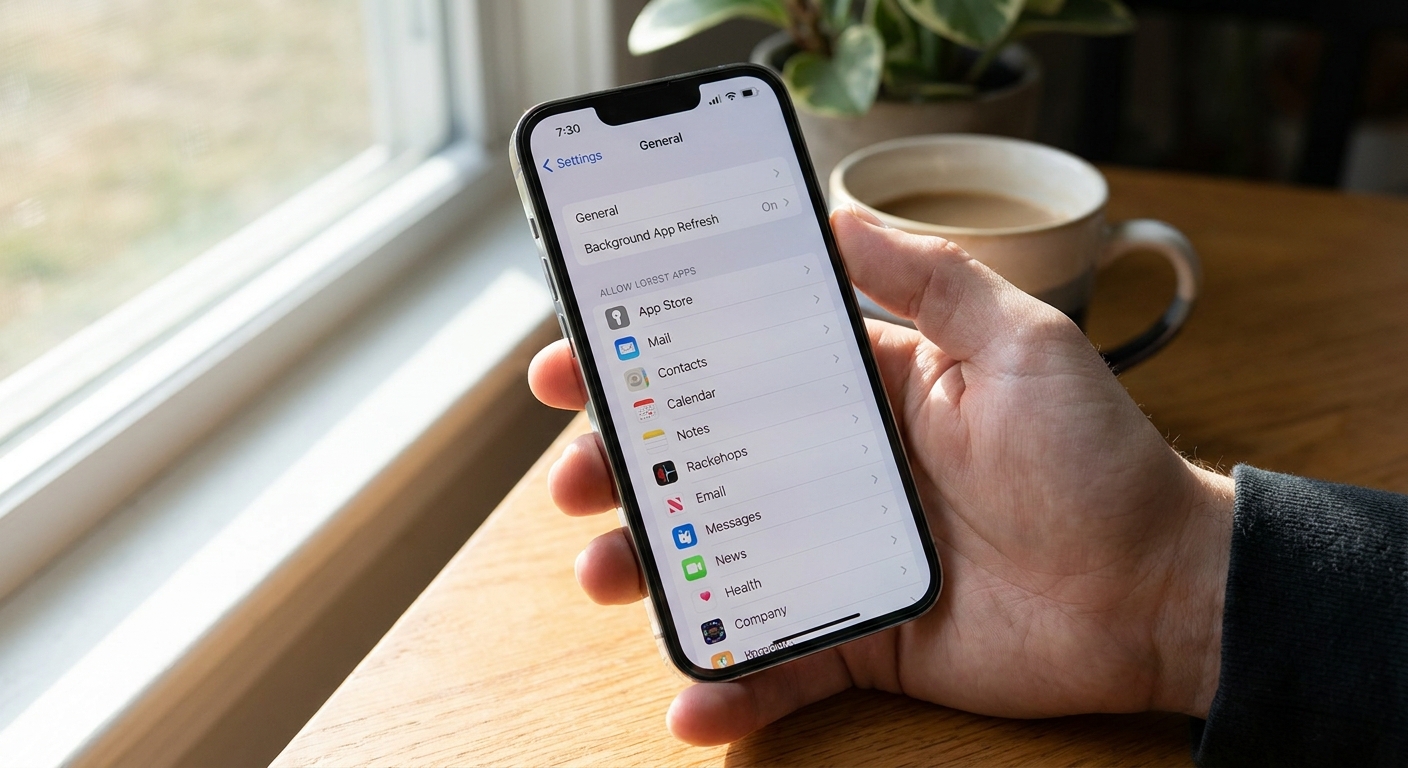
- Settings → General → Background App Refresh (enable for the texting app)
If you set strict data limits, allow this app
Some people set data caps and forget they did it. If your app fails on cellular data, you might have restricted it.
Walkthroughs here: Set strict background data limits on iOS and Android. Just make sure your messaging app is not the one getting cut off.
Fix #3: Check permissions and basic settings
Permissions do not usually control whether an app can connect to the internet, but they can change how usable the app feels. If notifications are off, you might miss incoming messages or think verification codes never arrived. If cellular data is off for the app, it will look “broken” the second you leave Wi-Fi.
Checklist
- Notifications enabled for the app (so you actually see incoming messages and codes)
- Cellular data enabled for the app (iPhone: Settings → Cellular)
- Background data allowed (Android)
- Contacts permission enabled if the app uses your address book (helps with matching and avoiding duplicate threads)
Focus and Do Not Disturb
These usually do not block sending, but they do make people think messages are not arriving. If the other person says “I never got it,” ask if they are in a Focus or DND mode, or if they muted your conversation.
Quick sleeper issue: wrong date and time
If your phone’s date and time are way off, some apps struggle with logins and secure connections. Set Date and Time to automatic, then try again.
Fix #4: Update, then reset the app
Update the app first
Messaging services change constantly. If your app is two major versions behind, delivery can get flaky.
Clear cache (Android) or reinstall (iPhone and Android)
- Android: Settings → Apps → (your app) → Storage → Clear cache
- iPhone: There is no true cache clear button for most apps. The clean fix is to delete and reinstall.
Important: before reinstalling, make sure you know your login method and can receive verification codes. If the app uses your number, double-check you still have access to that number.
Service outages: do not gaslight yourself
If nothing changed on your phone and suddenly everyone is having issues, it might be a server outage. Many major apps post incident updates on their official status pages.
If you suspect a broader internet routing issue (not “WhatsApp is down,” but “half the internet feels weird”), Cloudflare Radar’s outage view can be a useful clue, not a verdict: https://radar.cloudflare.com/outage-center.
When to stop troubleshooting: If you updated, reset the app, and tested on both Wi-Fi and cellular, and it still fails, jump ahead to the “switch strategies” section. At that point you are probably fighting an account limit, a network filter, or the app’s servers.
Fix #5: Make sure you are sending the right kind of message
Free texting apps vary a lot. Some can only message other users on the same app. Some provide a real phone number for SMS. Some support MMS (photos) only in certain countries or only when your account is verified.
If pictures or group messages fail
- Confirm the app supports MMS or group texting to regular phone numbers.
- Try sending a plain text message first. If plain text works and images fail, it is usually MMS support or a size limit.
- Compress or resize the photo, or send it as a link instead.
If you are on a very basic plan (or mixing carriers and apps), group chats and pictures can trigger extra rules. This explains the common gotchas: Why group chats and picture messages cost extra on basic plans.
If international texts fail
Some free apps restrict international SMS because it is expensive on the back end. If you are trying to message family overseas, you may need an app that supports international texting over data, not carrier SMS.
Options here: Send free international texts without carrier fees.
If this is really iMessage or RCS confusion
A lot of people say “texting” when they mean iMessage (iPhone) or RCS (Android). If failures are happening in your phone’s built-in Messages app, try temporarily switching that conversation to plain SMS (or disable RCS/iMessage for a quick test). If plain SMS works, the issue is not your free texting app.
Fix #6: Your number is mis-registered
This one bites people after a phone upgrade, a new SIM, or a carrier switch. Some apps tie your account to a phone number. If the app thinks you are still on your old device, messages can fail or go to the wrong place.
Signs number registration is the issue
- You can receive messages, but sending fails (or the reverse).
- Contacts say your messages come from a new number or a weird thread.
- Verification codes never arrive, or arrive on your old device.
Fix steps
- Confirm your number in the app settings (look for “Account,” “Phone number,” or “Linked devices”).
- Log out on old devices if the app supports multi-device.
- Re-verify your number using SMS or call verification.
- If you recently ported a number, give it time. Porting can take hours to fully settle across networks.
If you use a second number for free texting or verification, this guide explains how to keep it reliable: Free second phone number for texting and verification.
Fix #7: VPNs, Private DNS, and ad blockers
I like privacy tools as much as the next frugal tech nerd, but some VPNs and DNS filters block the exact domains messaging apps need. That can cause “sending…” loops or messages that only deliver when the VPN is off.
Test it
- Temporarily disable your VPN.
- Disable Private DNS (Android) or custom DNS profiles (iPhone) for a quick test.
- If you use an ad blocker, pause it for the app or whitelist the app’s domains if the tool allows that.
If everything works with privacy tools off, turn them back on one by one until you find the culprit.
Fix #8: Your account is limited or needs verification
Free texting platforms fight spam nonstop. That means legitimate users sometimes get caught by automated rules, especially if you are sending lots of similar messages, texting many new numbers, or using the service from a new device or location.
What to check inside the app
- Email verification and phone verification completed
- 2-step verification enabled if the app offers it (helps prevent lockouts)
- Payment prompts or “upgrade to continue” limits (some apps throttle free accounts)
- Terms violations warnings (even accidental ones)
If you think you got flagged
- Stop bulk sending for a bit and try again later. Sometimes a cool-down helps, sometimes it does not.
- Send a normal, unique message to a trusted contact and confirm delivery.
- Use the app’s in-app help or support channel to appeal if available. Some limits require a review to clear.
Fix #9: It might be the other person
This is awkward, but common. If one specific person never receives your messages, ask them to check these:
- You are not blocked.
- Your messages are not going to a spam or “requests” inbox inside their app.
- They did not mute the conversation.
- They are not on a device with aggressive battery saving that pauses the app.
- If you are using app-to-SMS, their carrier may be filtering that traffic as suspected spam.
Switch strategies (still cheap)
If you have tried the steps above and delivery still feels random, it might be time to change the setup instead of wrestling the same app forever.
Three alternatives I keep in my toolbox
- Wi-Fi calling and texting through your carrier when you have weak signal: enable it here.
- Web or desktop sending if your phone is the flaky part: send free SMS from your computer.
- A cheap plan built for Wi-Fi texting if you are constantly on Wi-Fi and want predictable behavior: best cheap MVNO plans for Wi-Fi texting.

Fast checklist
- Switch Wi-Fi to cellular data (or vice versa)
- Toggle Airplane Mode
- Restart phone
- Set Date and Time to automatic
- Disable battery optimization or Low Power Mode
- Allow background data and Background App Refresh
- Update the app, then clear cache or reinstall
- Disable VPN or Private DNS to test
- Re-verify your number and log out old devices
- Check if photos, group texts, or international SMS are supported on your plan and app
- If using your phone’s Messages app, test SMS vs RCS/iMessage
FAQ
Why do my messages send only when I open the app?
Almost always background restrictions. Turn off battery optimization for that app (Android) or enable Background App Refresh and disable Low Power Mode (iPhone). Also make sure background data is allowed.
Why does it say “sent” but the other person never gets it?
“Sent” often means “sent to the app’s server,” not “delivered to the recipient.” The recipient could be offline, restricted by their settings, or your app could be trying to route app-to-SMS through a carrier filter.
Why are my verification codes delayed?
Two common reasons: your app is paused in the background (so the code arrives but you do not see it), or the service sending the code is throttling or retrying delivery. First fix background restrictions, then consider using a different number or method for 2FA when possible. If you travel, this guide helps avoid roaming issues that break codes: receive 2FA texts abroad without roaming fees.
Do free texting apps work without a phone plan?
Many do, as long as you have Wi-Fi. The tricky part is verification and reliability. If you want a “no plan” setup that still behaves like texting, start here: Guide: Free Texting.
If nothing works
If you have done everything above and messages still fail across multiple networks, you are likely dealing with an account-level issue or an app outage. At that point, the best move is to switch to a different method for a day (Wi-Fi calling, desktop SMS, or a different app) while you contact support through the app’s help section. It is not a fun answer, but it beats missing important messages because you are stuck troubleshooting the same loop.
If you want, you can also reach me through the site contact page and tell me what device you are on, whether it fails on Wi-Fi or cellular, and whether it is SMS, app-to-app, or pictures that fail: Contact.